

HCP Data Extractions
HCP stands for Hospital CaseMix Protocol. It is the data that is sent to the health funds each month when you have provided a service to one of their members. The report is typically sent half way through the following month.
You need to have set up the email addresses for all health funds before extracting. See the Health Fund set up guide.
Make sure you have Microsoft Outlook open before doing the following steps. If you don’t use Microsoft Outlook, then add your email address next to the Sender email field (shown above). If your version of Outlook is older than 2003 edition, you will also need to add your email address in the Sender email field.
Click on Data Extraction in the main menu, then HCP in the sub menu which opens up the following.
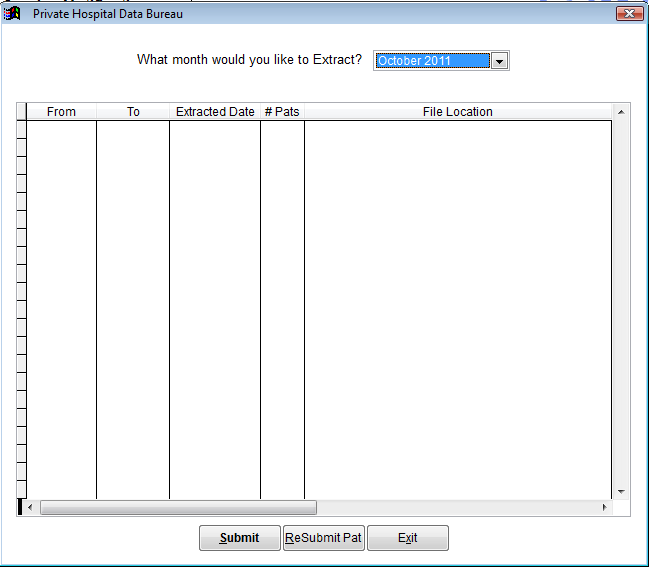
The table will show a history of data extractions you have done, so you can refer back to this screen if you need to double check what month you are up to or when you extracted.
What month would you like to extract? Click on the drop the box down and select the month you want to do an extract for.
Click on the Submit button down below.
A warning message will appear reminding you to open Microsoft Outlook if you haven’t already done so. Click on the OK button to continue..
The following screen will appear showing you any errors that need to be fixed before the extraction can proceed. It will show you which patient to fix, where and what to fix.
To print a list of errors, click on the Error Report button down below.
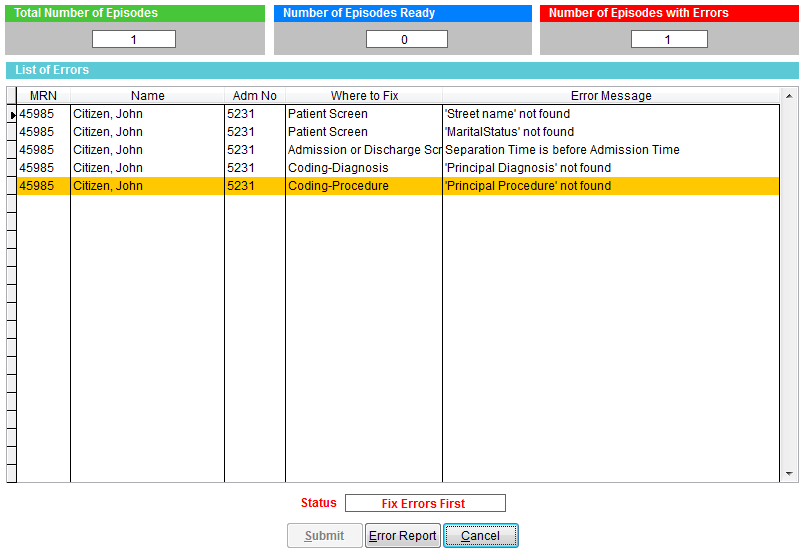
Fix the errors in question and then repeat steps 1-3
When there are no errors listed, click on the Submit This will open a separate email for each health fund with the data extract file already attached and the email addressed to the health fund.
If you haven’t set up an email address for the fund you are doing the extract for, you will get an error message telling you which health fund doesn’t have an email address set up. If so, enter the email addresses you are missing (see health fund set up) and repeat all steps again. If you are missing just 1 email address, no emails will be created.
You will be asked if you want to print a report of extracted patient. Click Yes or No.
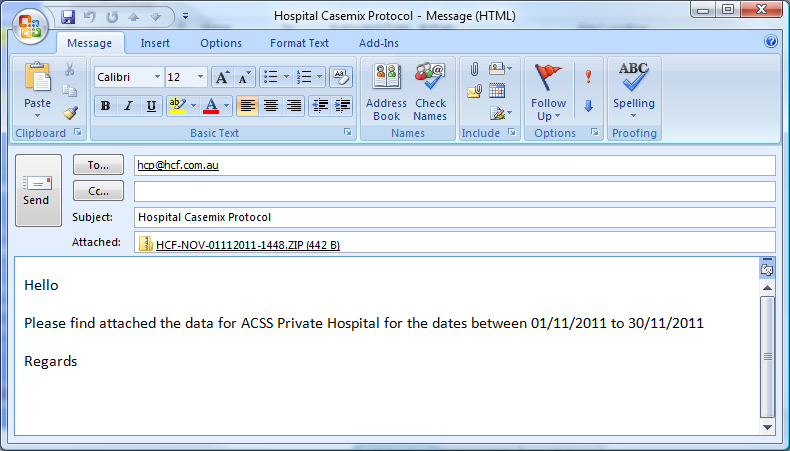
The email is now ready to send. You can add your contact details to the email if you wish. Otherwise just click on Send to send the email.
If you need to upload an extract on a website rather than send an email, then just close the email without sending it.
Sending HCP Data via Website Upload
After doing a data extract, the extract files are located within the HCP folder which is inside the SimDay folder on the server. To help you find the location, the path is displayed on the screen after you have extracted like below. Please call ACSS if you need assistance finding the files.
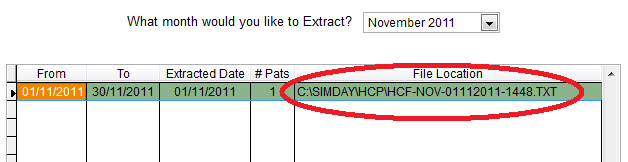
Each Health Fund or DVA will give you instructions on how to log in and upload the data extract file.