

Manually backup SimDay
Click Maintenance and Backup from the main menu of SimDay.
The Backup Utility screen will open displaying the type of backup and location where it will be stored.
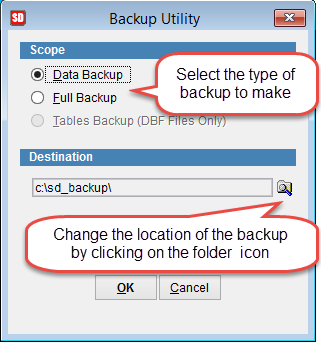
Select the type of backup under Scope. Select to backup patient data or a full backup.
Destination shows the directory where backup will be saved. By default the directory is S:\sd_backup. To change the directory click on the folder icon and select the directory or click Make New Folder and click OK.
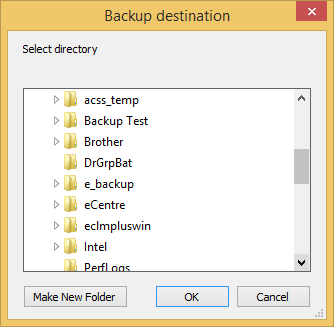
Click OK to start the backup routine or Cancel to return to the previous screen.
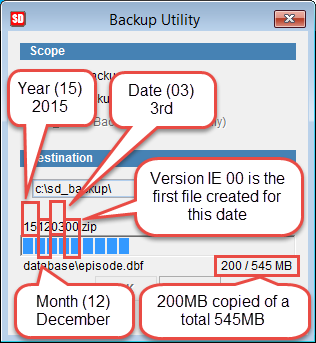
When the backup begins a bar will appear at the bottom of the screen showing the name of the file, the current file being backed up and the progress of the backup.
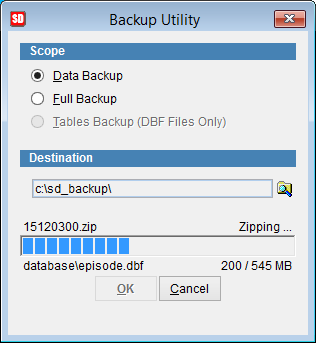
The backup filename is yymmdd00 where yy = year, mm = month and dd = day. The last 2 digits indicate the number of backups created for that day. 00 is the first backup for that date, 01 is the second backup etc
When the backup process has finished the backup screen will close and return to the main menu.