Coding
Patients need to be discharged before they are coded.
Go to the Booking Screen.
Highlight the patient you want to code by clicking on the patients booking. Use the ‘Find Booking’ button, which brings up a patient search box if you are unsure where the patients booking is located.
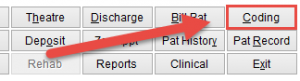
Once the patient is highlighted click on the Coding button or hit the ‘C‘ key on your keyboard to take you into the coding screen for your selected patient.
Notice the F in Find Booking and C in Coding is underlined. You can click F or C on the keyboard instead of using the mouse.
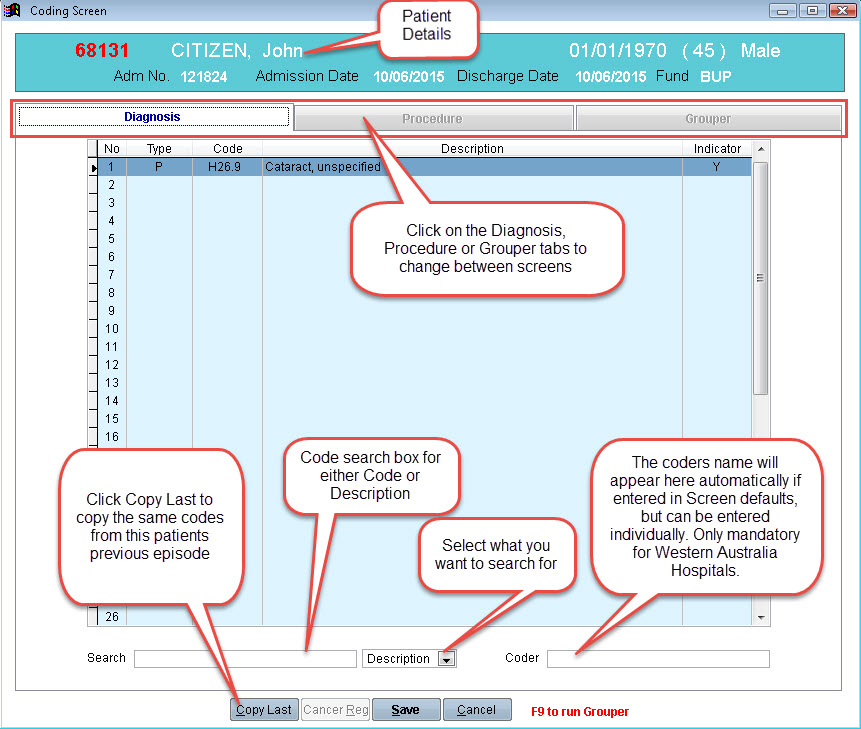
The Diagnosis Coding screen opens by default. The patient details are displayed at the top of the screen
Notice the three tabs near the top of the page. Click on the tabs to change between the Diagnosis, Procedure and Grouper screens.
On the Diagnosis screen click on the Edit button at the bottom to add or edit information.
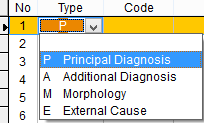
By default, the Type for the first code will always be set to P for Principal Diagnosis.
For each additional code, you will need to select the appropriate type.
Enter the code under the code column including the decimal point and then hit tab on the keyboard. The description should automatically be added to the screen. If an invalid code is entered an error message will appear.
Alternatively, you can use the search code box in the bottom left of the screen to search for a code either using a code or description. Change the drop down box to the right of the search box to what you are wanting to search for before entering your text. For description, you can search up to 3 key words that dont need to be in any order and you dont need to use whole words either. For code search, you can also enter any part of the code, it doesnt need to be complete.
Hit the Enter key on your keyboard to return your search results. From there you can select the code you are after which will populate the coding screen.

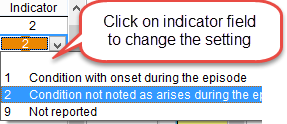
The Indicator column is only used in certain states and is a condition flag indicating whether the diagnosis you are reporting occurred during or before the patients admission to hospital. By default, the most common response is automatically selected and only needs to be changed if the diagnosis reported occurred during the patients episode.
To change the indicator click on the box under Indicator and select the correct setting.
After you have entered all diagnosis codes, click Save at the bottom of the screen.
Copy Last will copy all diagnosis codes from this patients previous episode, if there was one.
Click Save at the bottom of the screen or Cancel to discard changes and return to the previous screen.
Click on the Procedure tab at the top of the screen to display the procedure screen
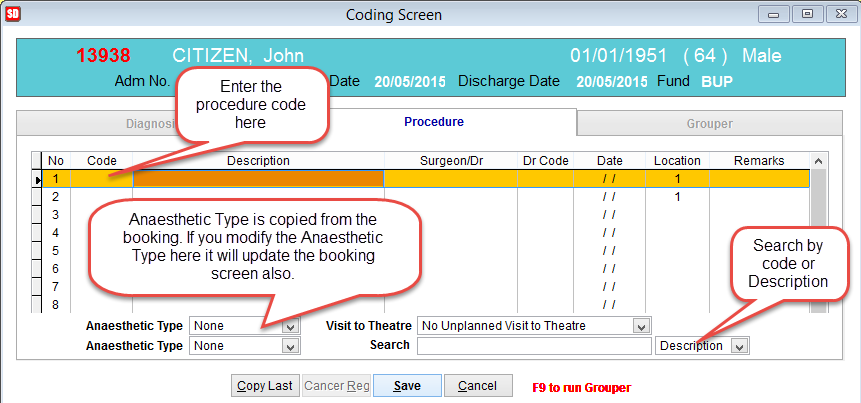
Anaesthetic Type is filled with data from the Booking Screen. If you modify and save anasthetic type here it will be updated to other screens in SimDay automatically.
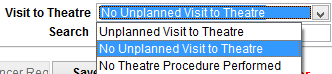
Visit to Theatre Click the drop down arrow and select the best option.