

Creating Journals
Journals are used to reconcile accounts, such as doing refunds and write offs.
Click Patient and then Journals from the main menu of SimDay to open the journal screen.
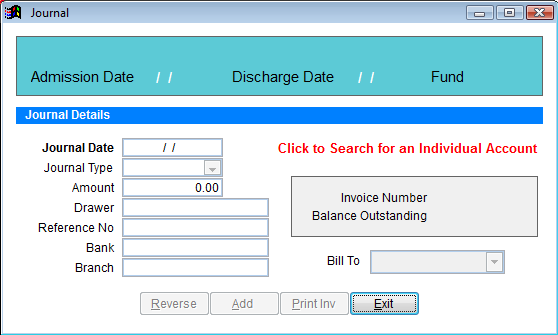
Click on the Click to Search for an Individual Account to bring up a patient search box.
Search for the patient or invoice you want to do a journal for, and the invoice will be shown with the amount outstanding.
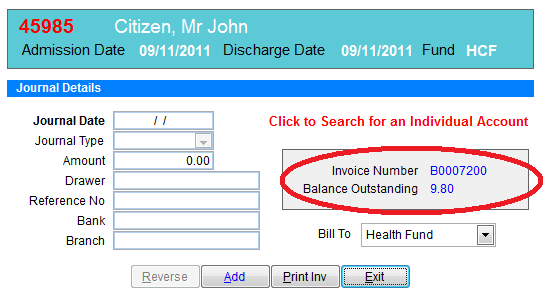
Click the Add button and the current date will be added to the Journal Date field. This date can be backdated if necessary.
Journal Type. Click the drop the box down and select from Refund, Discount, Overpayment, Bad Debt, Write Off, Deceased, Elderly Patient, Bounced Cheque, Bank Charge, Incorrect Billing or Other.
In this example, we are writing off an outstanding balance of $9.80 due to the health fund underpaying.
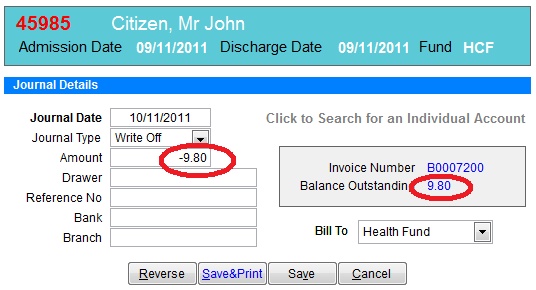
Amount– Enter the amount for the journal. Notice in the example above there is a balance outstanding of $9.80. Reconcile the account by entering a write off amount of $9.80 to bring the balance outstanding to $0.00.
Drawer, Reference No, Bank, Branch– Enter any cheque details if applicable.
Click on Save & Print if you want to print out the invoice or just click on Save.
Below is what the Patient History looks like after a journal has been entered.
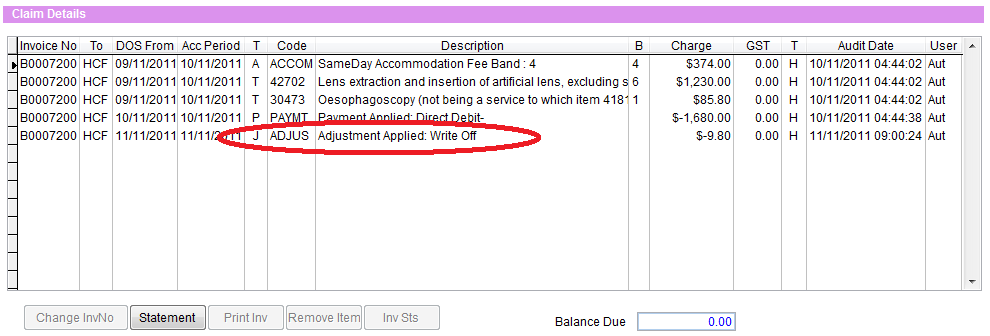
The journal entry can be deleted if a mistake was made by highlighting the journal/adjustment line and then clicking on the Remove Item button below.