

SMS
SMS is a cost effective way of contacting patients to give them information, remind them of an appointment or a change to their appointment, reducing no-shows for procedures and improving patient communication.
Messages can be sent to an individual patient or group of patients in less than a minute and if you wish the patient can reply to the hospital by SMS rather than calling to confirm information or appointments.
Messages can be customised with the patient name, appointment time and even the amount of excess due when they are admitted.
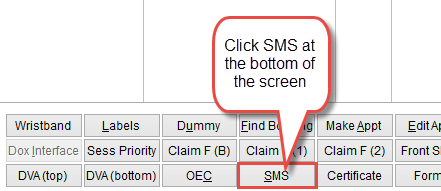
SMS can be sent an individual patient from the Patient screen or to groups of patients through Bookings.
From the Patient screen click SMS at the bottom of the screen
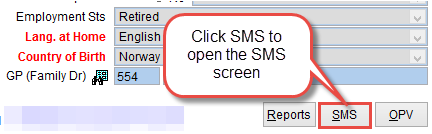
From the Bookings screen click SMS.
To open the bookings screen go to the main menu and click Patient and Bookings from the menu on the left side of the screen.
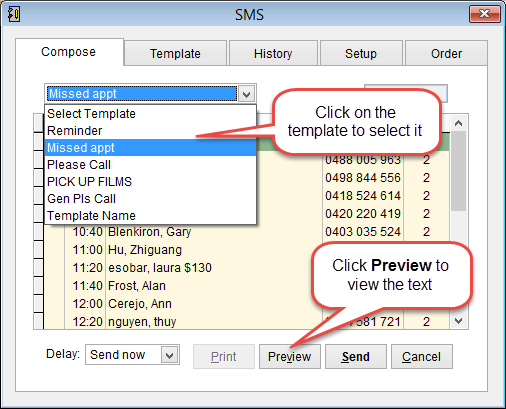
The SMS screen will open on the Compose tab.
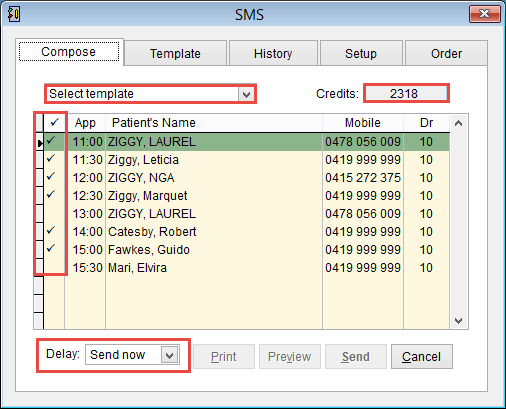
When you open the SMS screen from the Bookings screen all patients scheduled for that day will be displayed on the screen with the earliest appointment at the top of the screen. If the patient has a mobile number a tick will be placed in the first column to send a message to the patient.
Double click on the first column to add or remove the tick  . If the patient doesn’t have a mobile number listed they cannot be selected.
Click Select Template to see a list of available templates. Chose the message that will be sent to the patient and the buttons Preview and Send at the bottom of the screen will become active.
Click Preview to see the SMS that will be sent to the selected patients. Click Send to send the message to the selected patients or Cancel to discard changes and return to the previous screen.
Click here for How to Create an SMS template.
Credits in the top right corner of the screen displays the amount of messages that are available. It can take a few days to process payment for additional credits so please remember to order credits in advance. For more information refer to buying SMS credits.
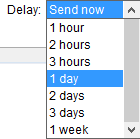
Delay sets when the message will be sent. By default the system will select Send now, click on the drop down arrow and select when the message will be sent to the patient if required.
Click Preview at the bottom of the screen to see the exact message that will be sent to the patient.
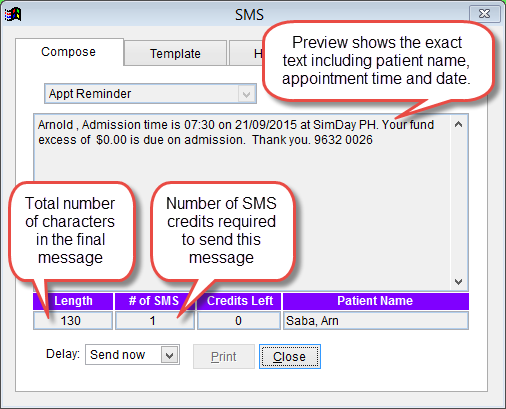
The exact message that will be sent to the patient is displayed including all personalised fields such as patient name, appointment date and time etc.
Length is the number of characters in the message. SMS messages are limited to 160 characters including spaces. If the number displayed under Length turns red it means you have reached the maximum SMS size that can be sent. Any text that exceeds the maximum number will not be sent to the patient.
# of SMS the total number of SMS messages that will be sent to this patient. If there are more than 160 characters eClaims will send an additional SMS to the patient if this feature is enabled.
Credits Left is the total number of available messages available.
Patients Name is the family name, first name of the patient.
If messages are personalised the total number of characters will vary for each message. SMS messages are limited to 160 characters per message. If the SMS exceeds 160 characters then the text will be separated into two SMS messages sent to the patient and deducted from the available credit. To allow patients to respond to SMS messages or modify the number of messages sent to the patient refer to SMS Setup
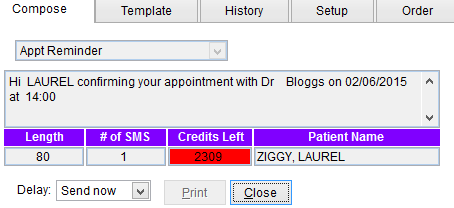
Click Close to return to the previous screen.
Messages can be personalised using the patient name, doctor name and time of appointment. SMS is a great way to send a reminder of a patient appointment or notify patients quickly if the doctor is unavailable or delayed.
Click Send to send the SMS to the selected patients or Cancel to close the screen and discard and changes.
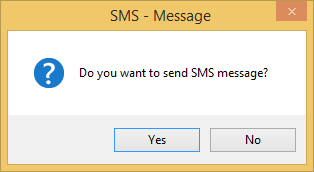
Click Yes to confirm sending the SMS messages.
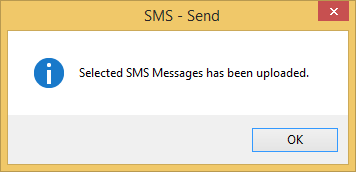
A confirmation screen will be displayed to confirm the message has been uploaded to the SMS server. Click OK to close this screen.
Did you know that patients can also send responses to SMS messages. To activate replies click here. SMS Setup.
Template
Click on the Template tab at the top of the screen to view, add or delete a template.
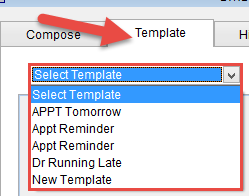
Click on the drop down arrow to see a list of saved templates and select a template for it to be displayed on the screen.
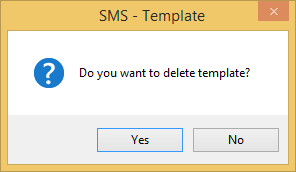
When a template is selected it will be displayed on the screen and can be modified. Click Save to save the changes made or Cancel to discard changes and return to the previous screen.Click Dele at the bottom of the screen to delete the selected Template.
Click Yes to confirm delete or No to discard changes and return to the Template screen.
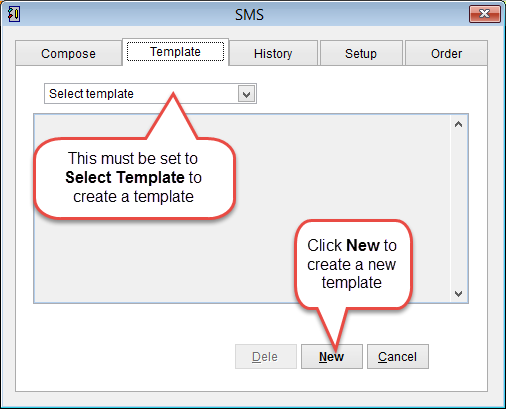
To create a new template have Select Template in the menu and click New at the bottom of the screen.
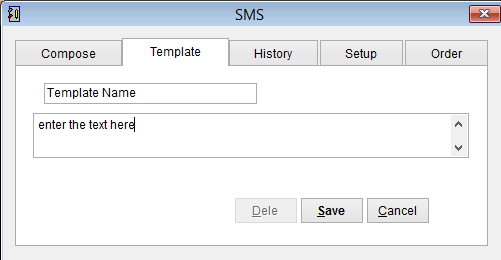
Add the Template Name and then the text below. Click Save to add the template to eClaims or Cancel to discard changes and return to the previous screen.
To check if the template has been added correctly click on the Compose tab at the top of the screen and click on the name in the available templates
History
Click on the History tab to see a record of sent messages.
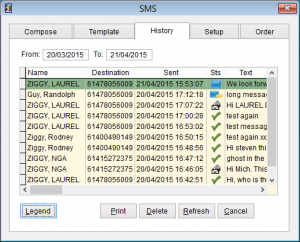
By default the system will display messages sent in the last month. Want to see a different date range, just click and change the dates under From / To.
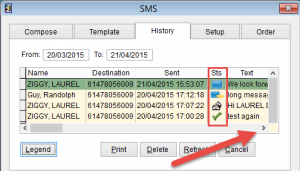
You can see the patient name, destination mobile number, date and time that the message was Sent, Sts (status), message text, the eClaims UserId that sent the message and replies from the patient if SMS Reply is set as active in eClaims.
Want to see the message that was sent to the patient. Click on the arrow at the bottom of the screen to scroll left / right or up / down.
Click on Legend to see all of the symbols displayed under Sts (Status).
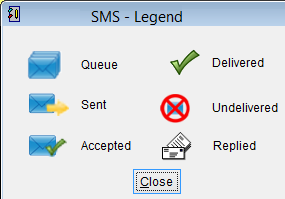
SMS Legend
| Queue | SMS is queued and waiting to be sent |
| Sent | Message has been sent from your computer |
| Accepted | Message has been received by the SMS server |
| Delivered | Message has been delivered to the patient |
| Undelivered | Unable to deliver the message |
| Replied | Patient has sent a reply to the message |
Print opens the SMS History Report screen.
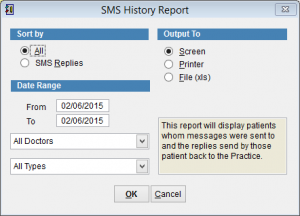
For more information refer to SMS History Report.
Delete removes a message. It is only possible to delete messages when they are queued. Once the message has been sent it is not possible to delete the message. If no messages are queued this button will be greyed out.
Refresh will refresh the screen and update any changes in the message status field.
Cancel closes the screen and returns to the previous screen.
Setup
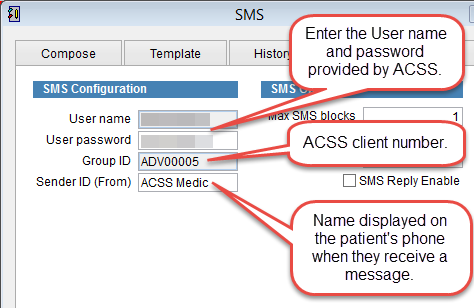
The Setup screen displays the account information and SMS options.
SMS Configuration displays the account information.
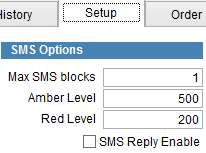
SMS Options
Max SMS blocks refers to the maximum number of SMS messages sent to a patient at one time. SMS messages are limited to a total of 160 characters including spaces between words. If limited to 1 message and the message exceeds 160 characters, only the first 160 characters will be sent.
Amber Level and Red Level are automatic alerts to remind you when to purchase additional credit. When the total number of available credits reaches this number the Credits field will become amber or red and a message *** Credit Level : VERY LOW ***displayed in the Compose screen. It can take several days to receive additional credits so please remember to order in advance.
SMS Reply Enable can be selected to allow patients to send responses back to messages received.
Click on Save to save changes or Cancel to discard changes and return to the previous screen.
Order
Click on the Order tab to order additional SMS credits. For more information click here Ordering SMS credits.