

Booking a patient
Click Patient then Bookings from the main menu on the left side of the screen to open the schedule at today’s date for the default theatre or list. There are two different views available for SimDay, refer to SimDay booking systems for more information.
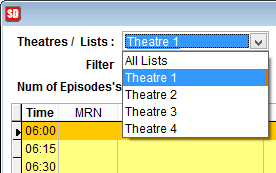
Use the drop down box in the top left corner to change between theatres or lists.
Use the date navigation buttons in the top right corner to go to the day make the patient booking.
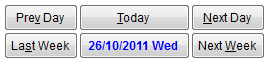
The Prev Day button will take you back one day and the Next Day button will take you forward a day. Similarly, the Last Week & Next Week buttons take you back or forward in weekly increments.
Click on the Today button to return to the current day or click on the date displayed in blue text to open a calendar to select the date directly.
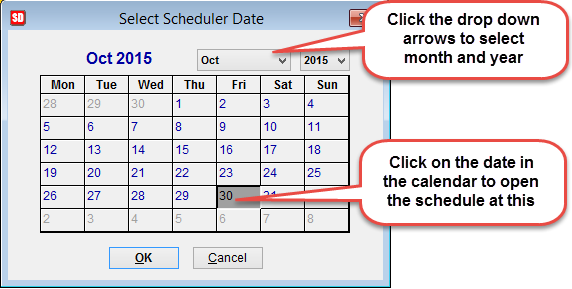
Either double click on the date in the calendar or click on the date so that it is highlighted and then OK at the bottom of the screen to open the scheduler at the selected date. Click Cancel to discard changes and return to the previous screen.
If you have diary style scheduler, click on the time slot you wish to book a patient in for. Otherwise, just click on the Make Appt button down below.

Buttons with underlined text can be used as a keyboard shortcut. IE Make Appt can be selected by clicking A on the keyboard.
If using the new scheduler a surgeon must be allocated to the session before it can accept patient bookings. Refer to How to add a surgeon to a theatre.
Patient Search
Search for the patient using the various methods shown in the screen below. If the patient is new, select any key and then press enter on the keyboard to open the Patient Lookup screen.
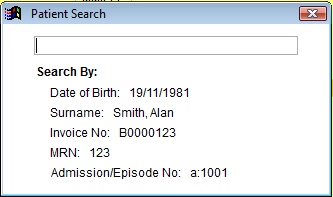
If it’s an existing patient, select the patient so they are highlighted then click OK, otherwise click Create New Patient. If creating a new patient refer to How to add a patient.
Booking Details
In the Booking Details screen (if not already pre-selected) select the doctor/surgeon using the drop down box. Select the anaesthetist (if applicable) in the same way as the doctor.
Some fields are locked but can be changed if the text is underlined in blue. Double click on the blue text to be able to change the selection for Dr/Surgeon, Session or Theatre/List.
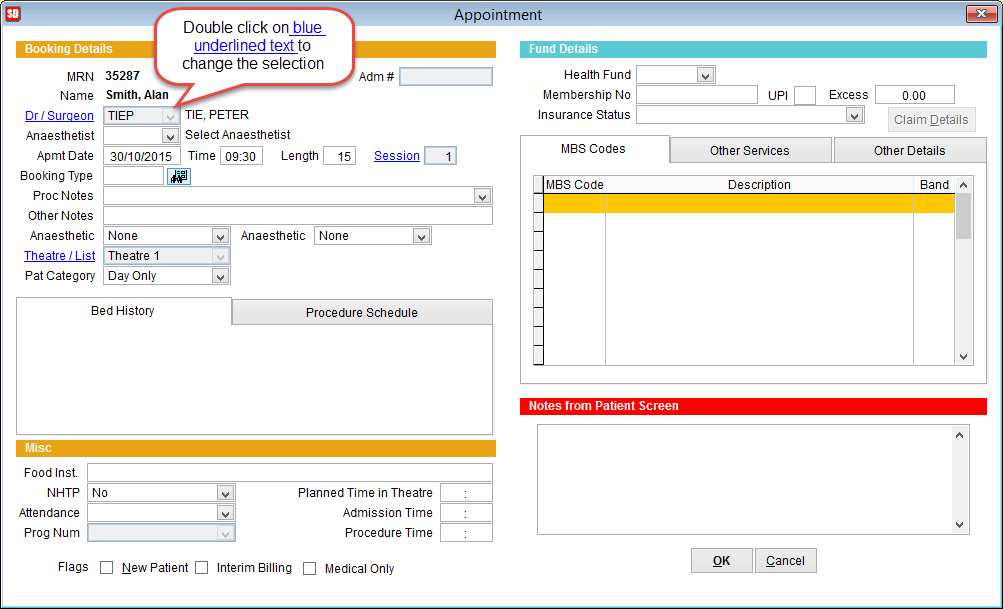
The Apmt Date, Time & Length may be added when creating the appointment or can be set or modified by typing in the boxes provided. The appointment length is displayed in minutes.
Booking Type is only used if you are also using the Dox program (sold separately) or have cost centres. If so, click on the button with a picture of binoculars next to it and select the appropriate booking code.
Proc Notes (Procedure Notes) can be entered manually or click the drop down arrow to select the text required. Any text added can be modified by typing in the box and will be transposed into the Theatre List/Admissions List for the day. Refer to how to add a procedure to the drop down list.
Other Notes field can be used for various purposes. It is most commonly used to add any alerts/messages to the Theatre/Admission List or Booking screen.
Anaesthetic records the type of anaesthetic required. Use the drop down boxes to select the kind of anaesthetic to be used. Select None if not applicable.
Only the first anaesthetic field is used for reporting purposes.
Theatre/List shows the theatre or list of the patient bookng. It can be changed by double clicking on the words Theatre/List and selecting from the drop down box.
Overnight facilities can select a bed the patient will be using with the drop down box. (Please call ACSS to set up beds for you). This bed number can be put on labels, front sheets & lists.
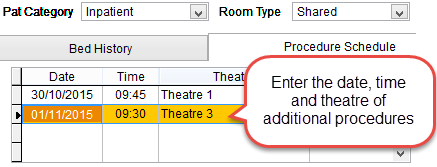
Pat Category shows the type of booking. If Inpatient is selected two new drop downs will appear for Accomodation Type and Room Type and you will be able to enter details for Bed History and Procedure Schedule.

If there are additional procedures or the procedure is to be done on a different date, enter the date below in Procedure Schedule. This will make the patient appear on the correct days theatre list.
Miscellaneous
Food Inst. (Food Instructions) Type out any dietary requirements of the patient. A Diet List can be printed out showing all patients that are in for the day.
NHTP– Select Yes if Nursing Home Type Patient.
Attendance– Select Cancelled or Cancelled after arrival for statistical purposes. If either option is selected, the booking will disappear from the booking screen. In the top left corner of the Booking screen (schedule), there is a drop down box next to ‘Filter’ where you can show cancelled bookings for the day.
Admission Time, Procedure Time & Planned Time in Theatre– Enter the estimated times in these boxes if you wish to have these times appear on the theatre list (optional)
The New Patient tick box is automatically ticked when a new patient is created.
Interim Billing– If the patient is going to be a long stay patient and you wish to bill before the patient is discharged, tick the Interim Billing tick box.
Medical Only– If the patient is a medical only patient and won’t be going into theatre, tick this box. This will ensure the patient doesn’t appear on the theatre list.

The patients’ health fund details will come over from the patients’ record; however this section is where you will nominate who will be billed at the end. If the episode is going to be billed as a Workers Compensation, Third Party Claim or Uninsured, drop the health fund box down and select the applicable. If Workers Comp or Third Party is selected, the Claim Details button will become active. Click on the Claim Details button to bring up a screen shown below.
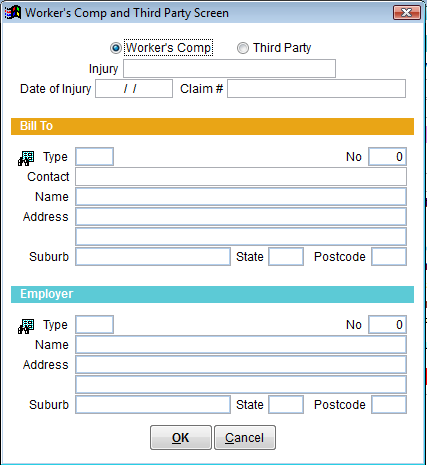
Enter the workers comp claim details i.e. Injury, Date of Injury & Claim Number. Leave blank if Third Party claim.
In the Bill To and Employer sections, there is a picture of binoculars. Click on these pictures to select or create the details of the Bill To or Employer details, then click on OK.
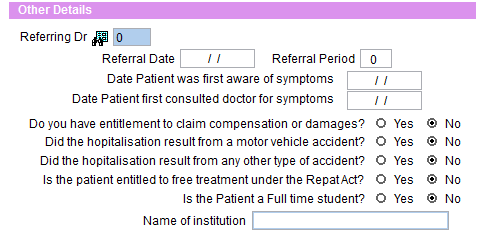
Referring Dr– (Optional) Click on the picture of the binoculars which brings up a list of referring doctors. Select the doctor from the list or click on the New button to create a doctor.
Enter the Referral Date, Period, Date Patient was first aware of symptoms and Date Patient first consulted doctor for symptoms if required.
The following 5 questions are the questions that appear on the Hospital Claim Form (HC21) and have been pre selected as ‘No’ for your convenience. Change if necessary. When the HC21 form is printed, these questions will be already answered for you.
To complete the Booking click on the OK button and you will be returned to the Booking screen with the booking displayed in the time slot you have selected.