How to add a patient
The process to add or search for a patient are the same. A patient can be added through both the patient screen and bookings.
From the main menu click on Patient and Patient Screen on the left side of the screen to open the Patient Search screen. Enter the patient name in the format Family Name, First Name and click enter on the keyboard when finished. There is no need to enter the whole name.
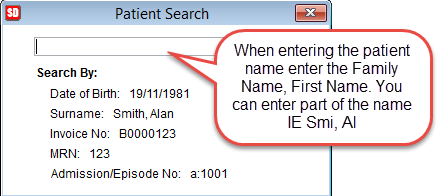
If searching for Alan Smith you could enter smi,al and all records with these first letters in the name will be displayed.
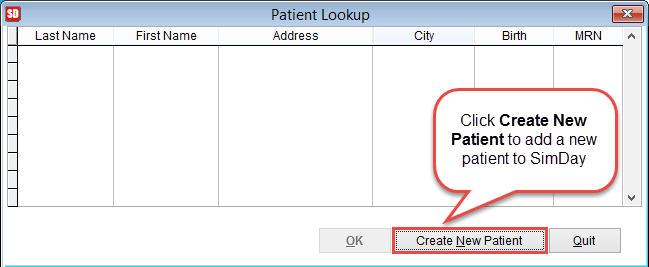
Enter the patient details and click Save to add the patient to SimDay or Cancel to discard changes and return to the previous screen.
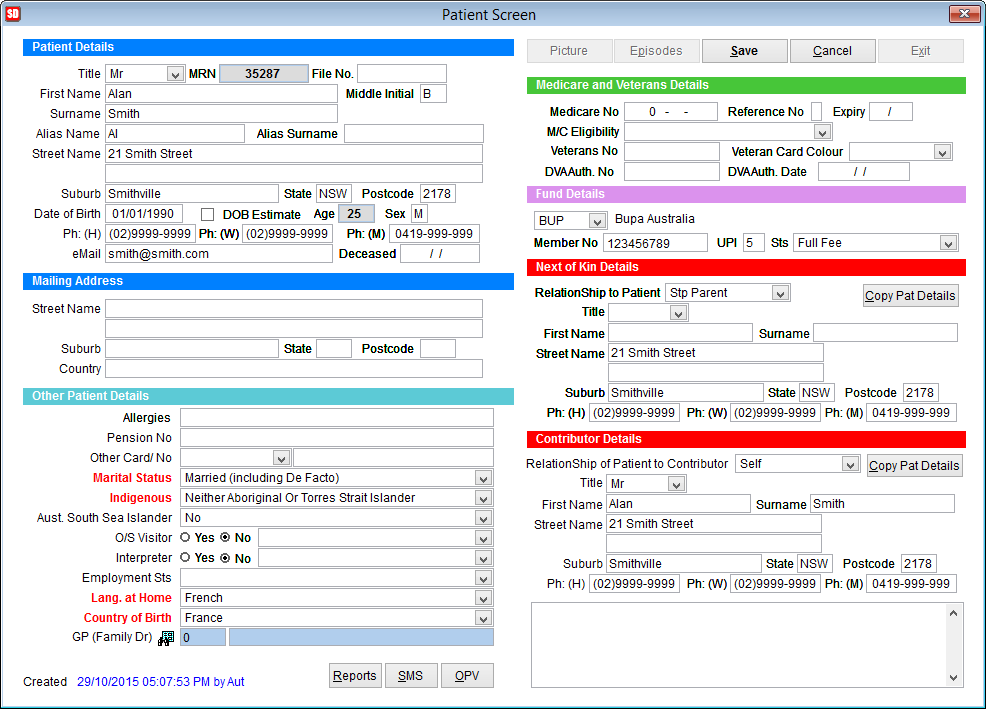
Some fields may be selected by default depending on the initial setup. Click on the drop down arrows to select or change the option for each field. To change the defaults for all patients refer to how to set SimDay screen defaults.
Patient Details
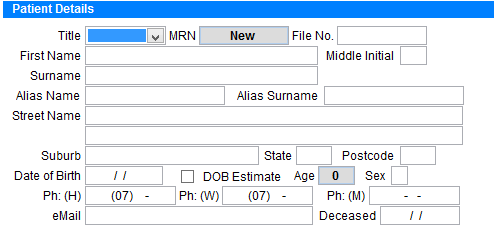
Title click the drop down arrow and select the patient title.
MRN will be displayed as New which means a new MRN will be assigned when the record is saved.
File No. can be used to add a manual file number for the patient record.
First Name is the patient’s first name
Middle Initial will only store 1 letter for the patients middle name
Surname is the patient’s family name.
Alias Name and Alias Surname is used to store the patient name if a different name is used by the patient.
Note Alias name/surname and patient name/surname is transmitted to the health fund when claiming online.
Street Name is used to store the patient’s street address. IE 25 Smith Street
Suburb is used to store the patient suburb. There is no need to add the entire suburb. Enter part of the name and click Enter or Tab on the keyboard and the postcode search screen will be displayed with the postcode and state. Click on the correct entry and the suburb, state and postcode fields will be added to the patient details.
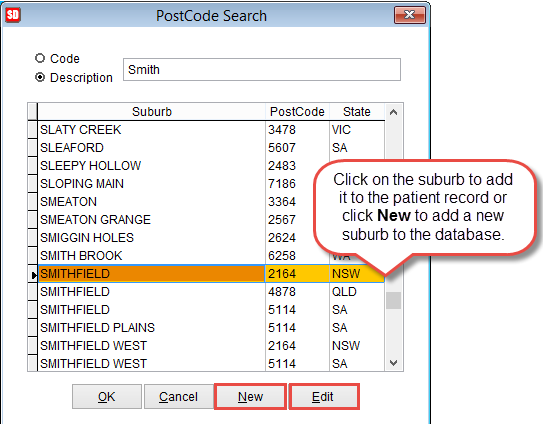
If the suburb isn’t listed click New to enter the details.
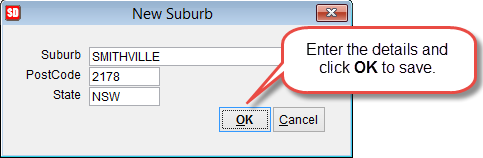
Add the suburb, postcode and state. Click OK to save the details or Cancel to discard changes and return to the previous screen.
Date of Birth is entered in the format dd/mm/yyyy where d is date, m is month and y is year. IE 31st of January 2010 whould be entered as 31/01/2015
DOB Estimate should be selected if the date of birth is estimated.
Age is automatically calculated based on the date of birth.
Sex is updated based on the title selected for the patient. Click on this field to change the sex if necessary.
Ph : (H) is for the patient home phone number.
Ph : (W) is for the patient work phone number.
Ph: (M) is for the patient mobile phone number.
eMail is the patient email address.
Deceased records the date that the patient died. BY default this is blank.
Mailing Address
Records the patient’s mailing address.
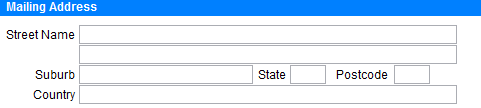
If the patients mailing address is the same as the address in the patient record then do not enter any information in this screen. The details displayed here will be printed on the patient invoices etc.
Other Patient Details
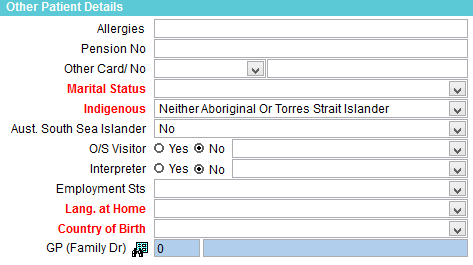
Allergies is for the patient allergies to be entered. Information entered here is also displayed in the bookings screen !!CHECK!!
Pension No is used to record the patient pension card number if they have a pension card.
Other Card No, select from Pension Card, Concession Card or Safety net Card and enter the card number.
Items marked in red are mandatory fields required reporting and must be entered.
Marital Status is used to select the patient marital status.
Indigenous records if the patient is of Aboriginal and/or Torres Strait Islander descent.
Aust. South Sea Islander records if the patient is descended from the islands of the Western Pacific.
O/S Visitor records if the patient is an overseas visitor. If yes is selected please select the patient’s country of residence.
Interpreter lists if the patient requires an interpreter. If yes is selected please select the correct response from the drop down list.
Employment Sts records the patient’s employment status.
Lang. at Home is used to record the language spoken at home by the patient.
Country of Birth, click on the drop down arrow and select the patient’s country of birth.
GP (Family Doctor) is used to select the patient’s regular doctor.
Click on the icon next to this field to open a list of General Practitioners stored in SimDay.

Select the doctor from the list and click OK or click New to add the doctor to SimDay.
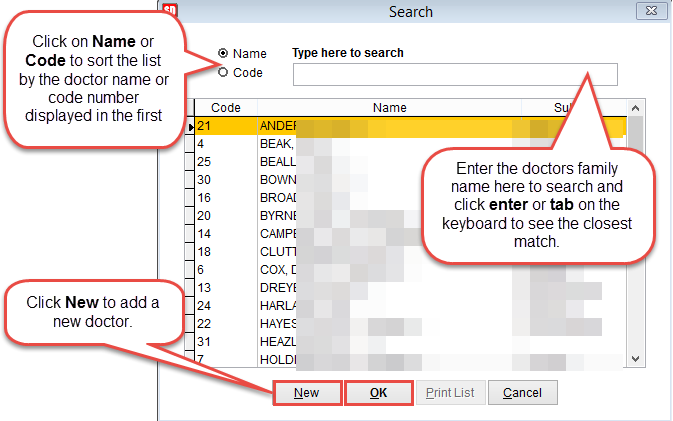
If you need to change the GP click on the icon again to open the search screen.
Medicare and Veterans Details
Records the patients Medicare and Department of Veterans Affairs status.
Medicare No is the patient’s Medicare number. When the number is entered SimDay checks that the number is in the correct format.
Reference No is the number displayed before the patients name on the Medicare card. In the example below the reference is 6.
Expiry displays the expiry date of the medicare card. This is displayed next to Valid To in the bottom right corner of the card.
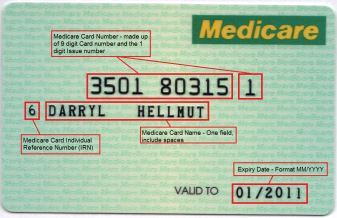
M/C Eligibility displays the patients eligibility for Medicare cover.
Veterans No records the patient’s Department of Veterans Affairs (DVA) card number.
Veteran Card Colour is used to select the type of DVA card. SimDay records only white or gold cards. DVA also issues an orange card but this is not eligible for healthcare claiming so not recorded in SimDay.
DVA Auth No notes the Department of Veteran Affairs authorisation number.
DVA Auth Date is the date of the DVA Authorisation number.
Fund Details
Click on the drop down arrow below Fund Details and select the health fund.

Member No is the patient’s health fund membership number.
UPI is a Universal Position Identifier. This is the number of the patient on the private health insurance card.
Sts records the level of health cover. Select full fee or basic cover.
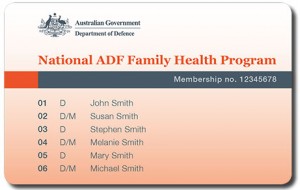
If the fund isn’t listed click here for instructions on how to add a health fund.
Next of Kin Details
Enter the contact details for the patient’s next of kin. Click Copy Pat Details to copy the patient address and phone number into these fields.
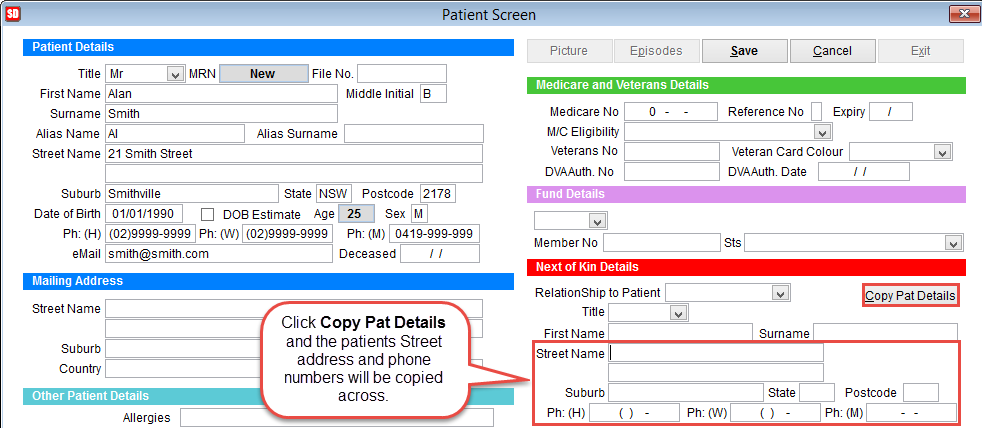
Relationship to Patient has a number of available options. EPOA is Enduring Power of Attorney, Grd Parent is Grandparent, Stp Parent is Step Parent.
Contributor Details
If Copy Pat Details is selected the patient details will be copied and Relationship to Contributor set to Self.
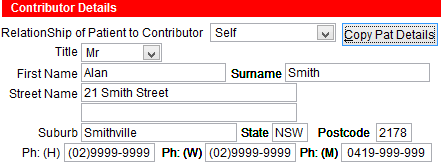
Select a field and change the data if necessary.
Click Save to add details to SimDay or Cancel to discard changes and return to the previous screen.

Creation Date
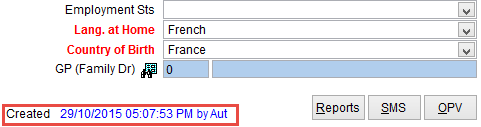
When the record is saved to SimDay the date, time and login used to create the record are added at the bottom left corner of the page next to Created.