

How to add a doctor to a non standard day
First we’ll show how to create a non standard day in the session configuration and at the end of this page is a link to adding a surgeon or anaesthetist to the session that has been created.
Click Maintenance and Theatre Data from the main menu on the left side of the screen.
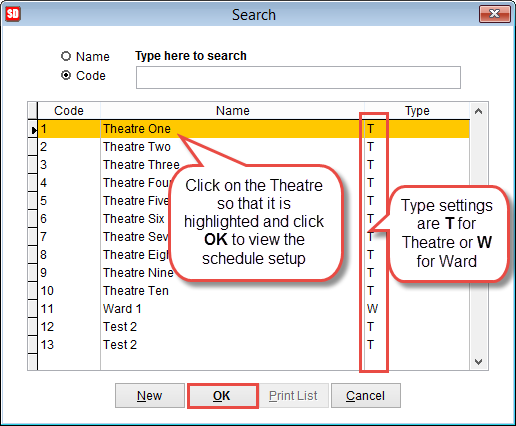
A list of the current Theatres and Wards will be displayed. Click on an entry so that it is highlighted and click OK to view the Theatre Data screen.
Click Config at the bottom of the screen to open the session configuration screen.
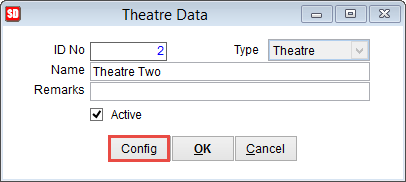
When setting times for theatre ensure Active is selected at the bottom of the screen.
Set the appointment type for this session by clicking on the drop down arrow. When an appointment is selected it will be displayed in the appointment type field.
Set the number of sessions. SimDay can allow a maximum of 3 sessions for a day. Click OK to save changes or Cancel to discard changes and return to the original settings.
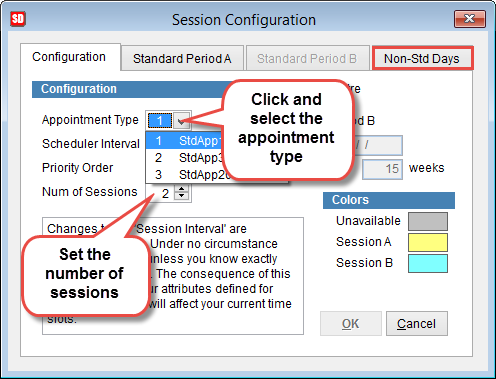
Click the tab Non-Std Days at the top of the screen to set a schedule for a one-off schedule.
Set the date by clicking on the calendar icon next to the From field.
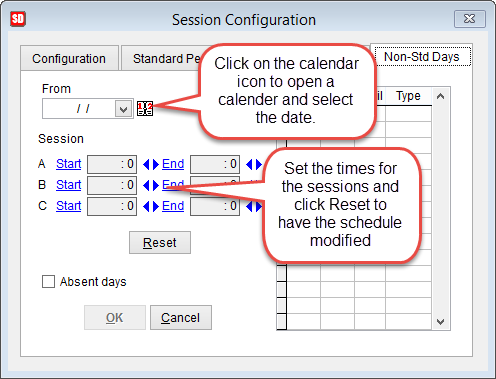
When the date is selected times will be added to the Start and End times of Session.
Depending on the number of sessions selected there may be up to 3 lines (A,B and C)
To change the times for each session click on the arrows next to each field. Click the arrow pointing to the move the time forward by one appointment or click to the left to move the time back by one appointment.

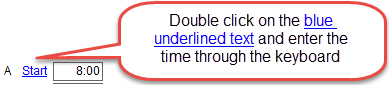
Alternatively double click on the underlined text to be able to input the time directly.
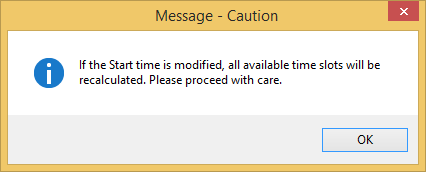
When the time is input manually a warning message will be displayed. Click OK to continue.
When the start and end times for each session have been set click Reset to update the schedule on the right side of the screen.
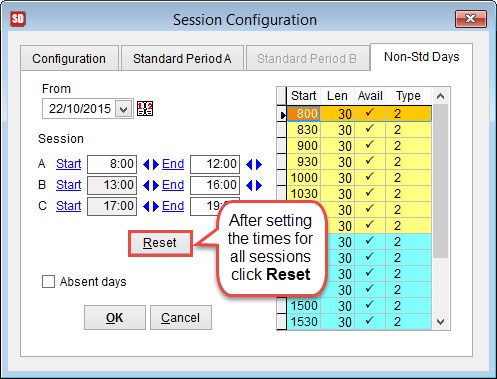
Check the schedule is correct and click OK to save changes or Cancel to discard changes.
Push escape several times on the keyboard to return to the main menu.
Click here complete the session setup and add a doctor and anaesthetist to a theatre.