How to install SimDay client
This tutorial will help you install the SimDay client application on a PC. This must be used in a network where the SimDay server is already installed on a server.
Preparation Requirements
Before attempting the installation please ensure that you have the following :
SimDay Installation Disk which includes the SimDay Client installation file OR download the client installation file from acsshealth.com/installs/disk1sdclient.exe
Obtain the computer name and directory where the SimDay Server is installed
Ensure you are logged into the computer with Administrator permissions
SimDay Client Installation
| Insert the installation CD provided into the computer OR install the downloaded file. | |
Click Install
Note : By default set Destination folder to the local drive. IE. c:\acss_temp |
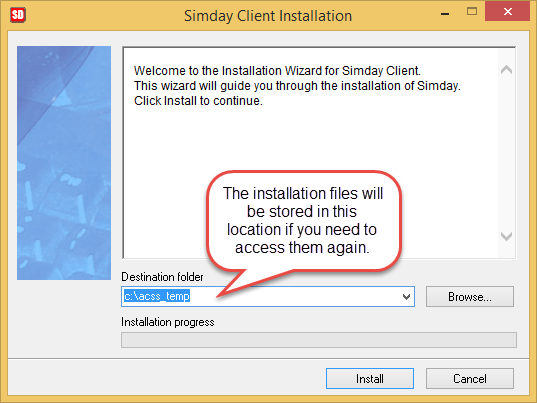 |
| Click Next | 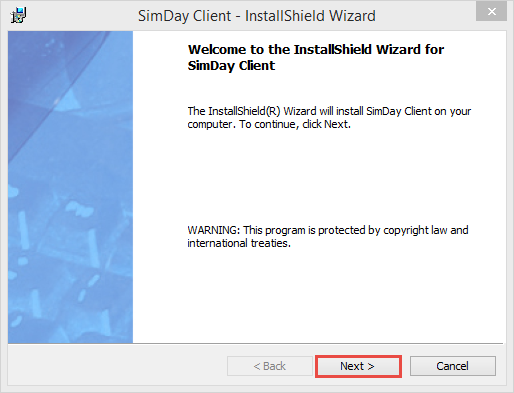 |
| Select I accept the terms in the license agreement. Click Next | 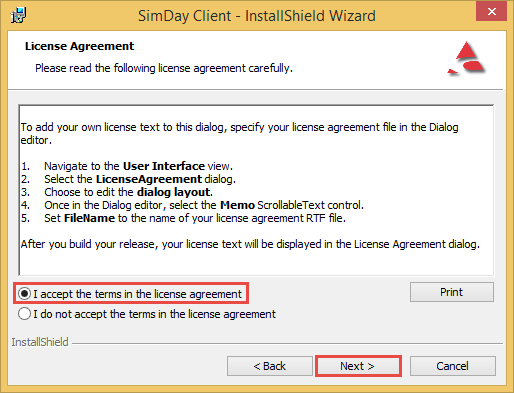 |
Select Anyone who uses this computer (all users) for other users to be able to access SimDay on this PC.
Note : If ‘Anyone who uses this computer (all users)’ is greyed out or not there Cancel the installation and ensure you are logged in as a user with administrator privileges.Click Next |
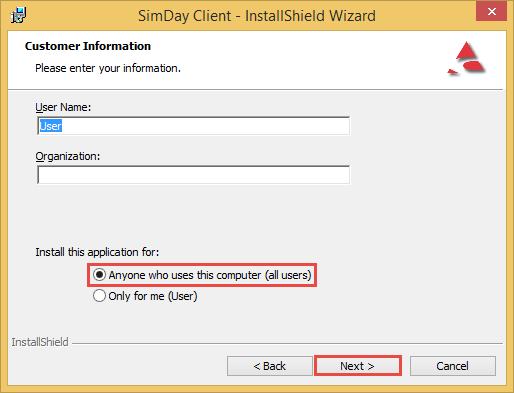 |
BY default the path should be set to C:\SimDay\
Note : To change the path, click on Change enter the path and click OK. Click on Next |
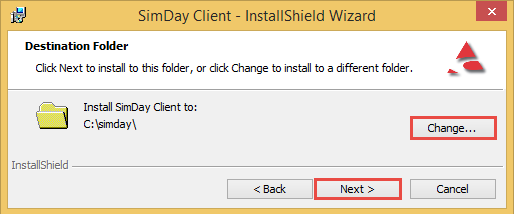 |
| Specify the path of the machine in which SimDay Server is installed. Click Change | 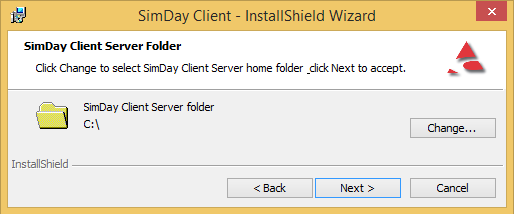 |
| In the FOLDER NAME field enter the path of the SimDay folder on the server. IE ‘\\server\SimDay\’. Click OK | 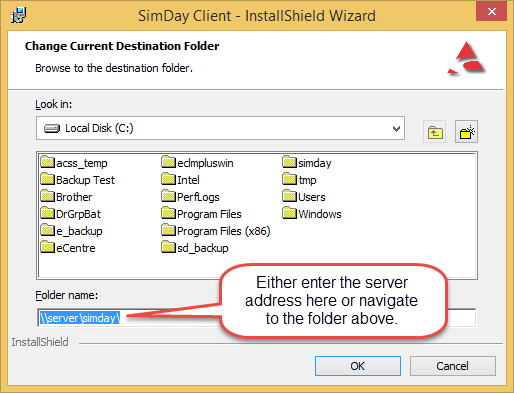 |
| The server path will be verified and added to the install screen. Click Change if you need to modify the directory or Next to continue. | 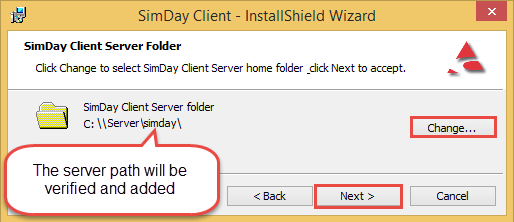 |
| Click Complete and then Next | 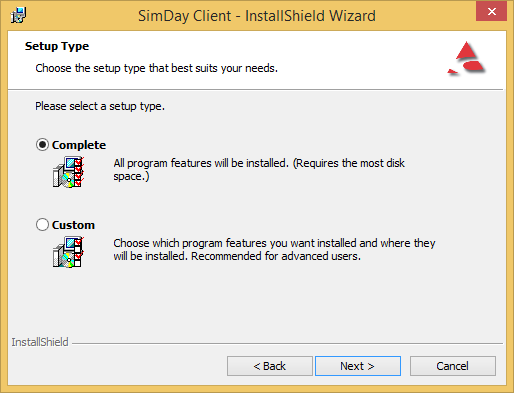 |
| Click Install | 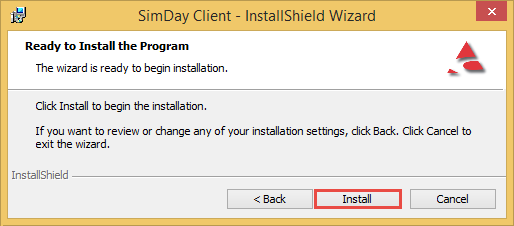 |
| The application will now be installed | 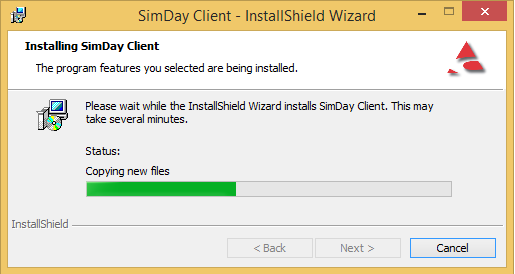 |
| Click on Finish | 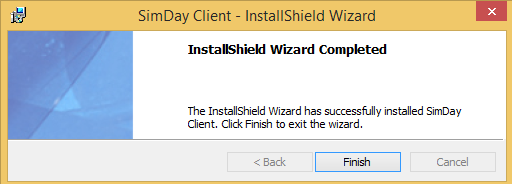 |
| The first few times it’s necessary to run SimDay as administrator to set the system variables. | 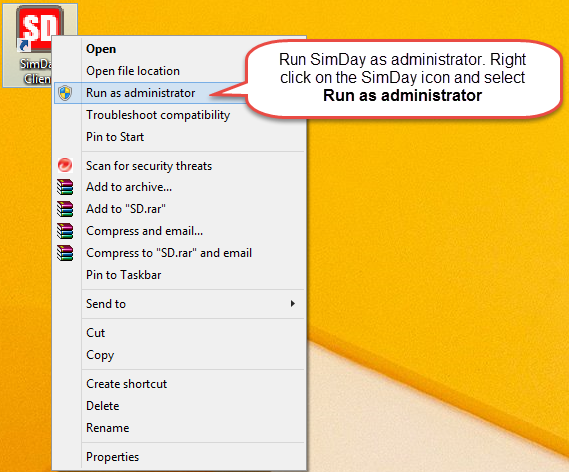 |
| SimDay will install several files and the web browser will open showing the latest updates. | 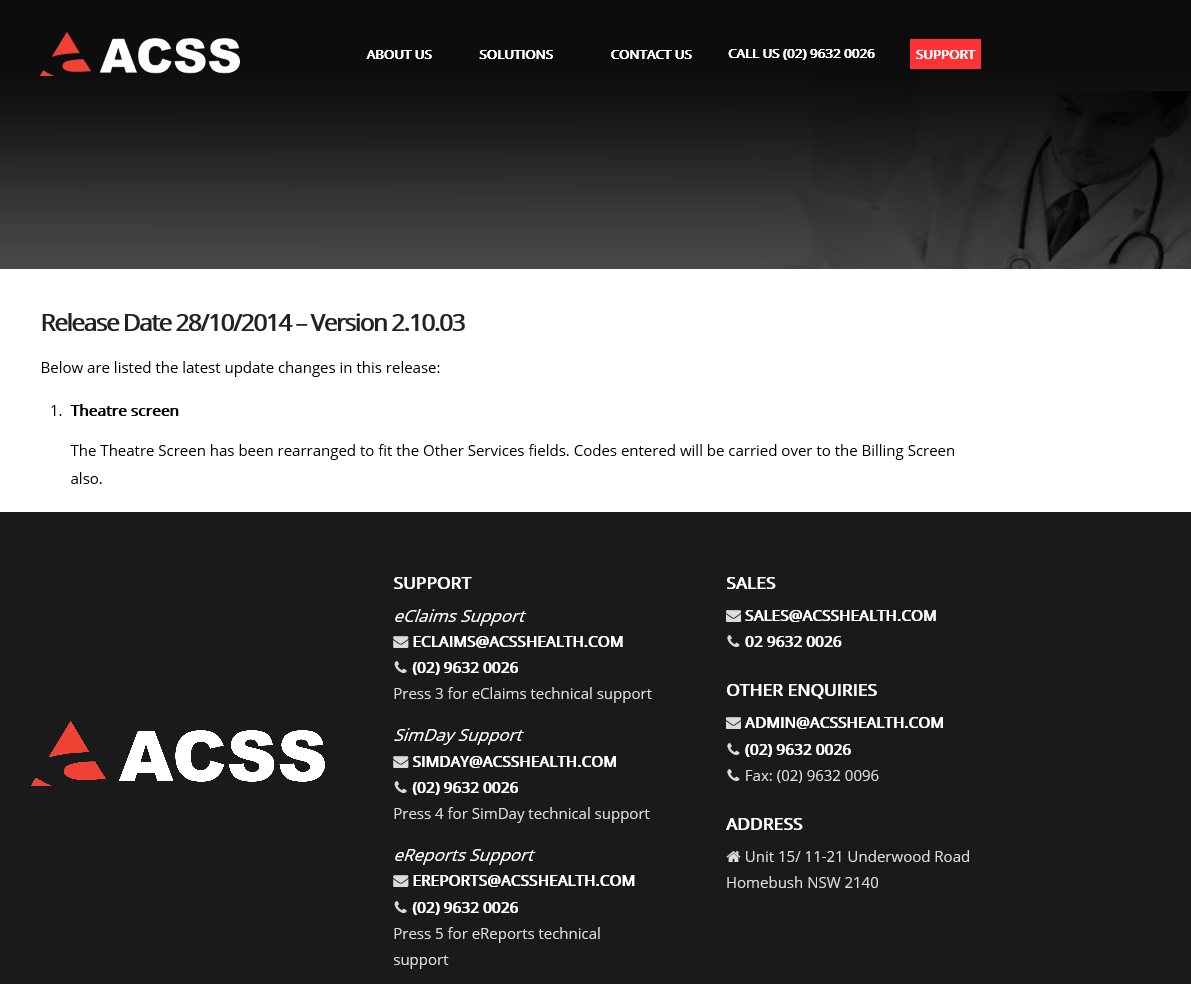 |
 |
|
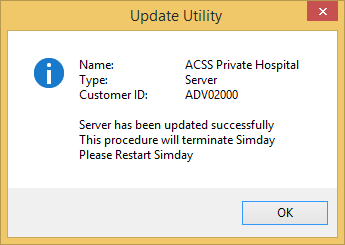
| The application will automatically run through this process.Click OK | 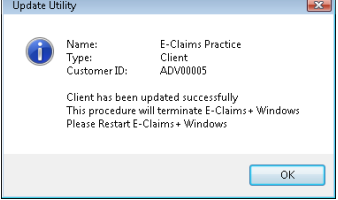 |
| The application will automatically run through this process.Click OK | 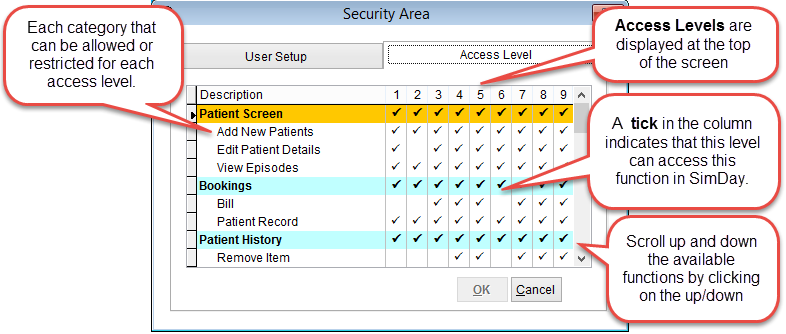 |
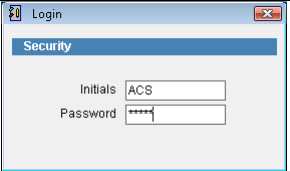
| Run ‘eClaims + Client’ from the desktop.Initials = ACS Password = ADMIN |
 |
SimDay is now ready to use