

How to modify or create a login
This tutorial will show you how to modify or create a new login for SimDay.
Go to the main menu and click Security Area in the menu on the left side of the screen.
Security Area will open on the User Setup tab that displays all login accounts and can be used to modify existing accounts or create a new user account.
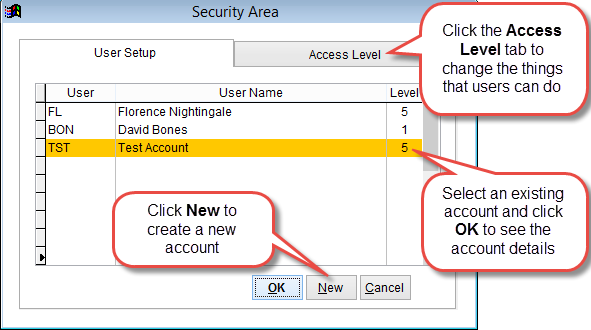
To open an existing account, left click on an account so that it is highlighted and click OK at the bottom of the screen.
Click New to create a new login for SimDay.
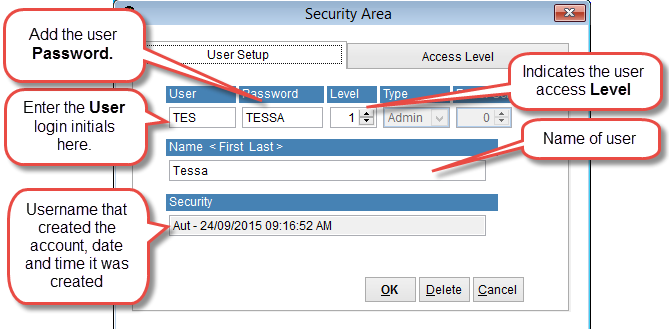
This screen shows the details of the user login account. Add the text for a new account or modify the text of an existing account and click OK to save the details to SimDay.
Click Delete at the bottom of the screen to remove an account or Cancel to discard changes and return to the previous screen.
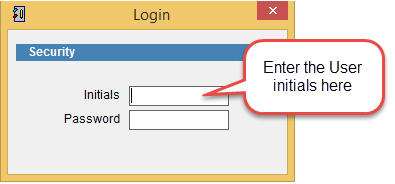
User is set to a maximum of 3 characters and these are the Initials used when logging into SimDay.
Password is set to a maximum of 8 characters and is entered when logging into SimDay.
Level sets the access level of the account, controlling what things the user can and can’t do in SimDay.
Name records the name of the user. This name is displayed in the User Setup screen when first opening Security Area.
Access Level
Access level is used to set what functions a user can perform in SimDay. There are a number of different functions that can be set for each level of user account. 9 different levels are available that can be allocated to the login accounts.
Please note, changes made to Access Level will affect all users, not just the user that is being added now.
Click the Access Level tab at the top of the screen. Access Level is used to set what functions a user can perform in SimDay. A tick under the column indicates what that this access level can perform the selected function. Double left click with the mouse under a column to add or remove the tick.
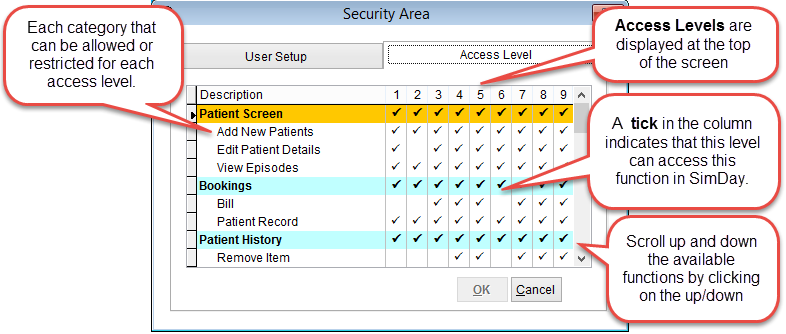
To add or remove a tick, double click with the mouse under the column. In the screen above Access Level 2 can view the Patient Screen but not Edit Patient Details or Bill the patient.
Click OK to save changes or Cancel to discard changes and return to the previous screen.