

How to relocate the SimDay server
This tutorial will help you install the SimDay server on a PC for a client already using SimDay.
Preparation Requirements
Before attempting the installation please ensure that you have the following :
Ensure you have a copy of the entire “simday” folder from the old SimDay server as well the backups folder (if it is located outside of the simday folder).
Download SimDay server software from http://acsshealth.com/installs/disk1sdserver.exe and save this file on the new server
SimDay Server Installation
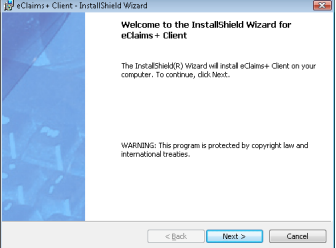
Click Install and follow the installation prompts.
Note : Ensure the Destination folder is set to the local drive, eg. ‘C:\’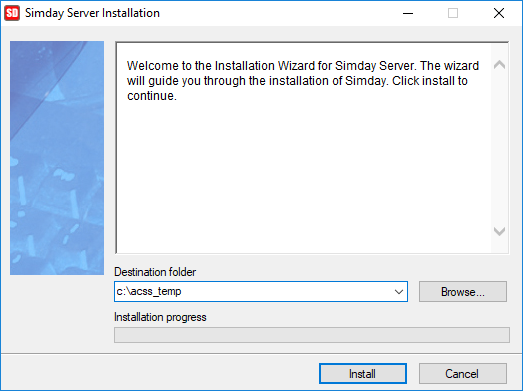
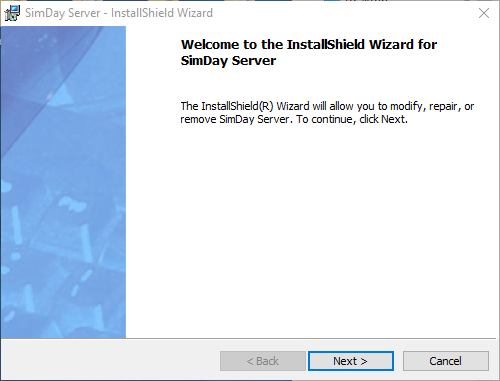
Click Next
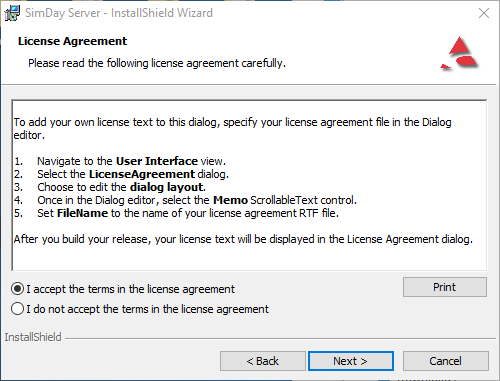
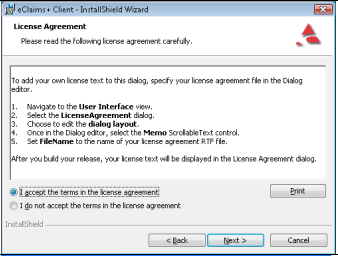
Select I accept the terms in the license agreement. Click Next
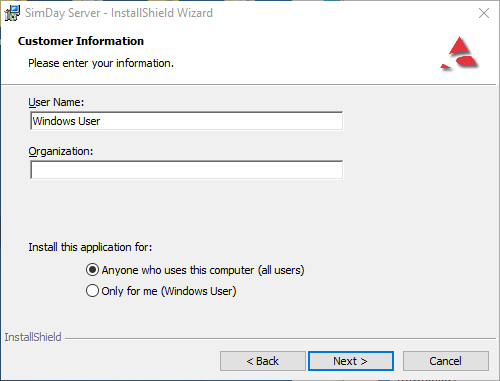
Note : If ‘Anyone who uses this computer (all users)’ is greyed out or not there at
all,’CANCEL’ the installation and ensure you are logged in as a user with administrator privileges.
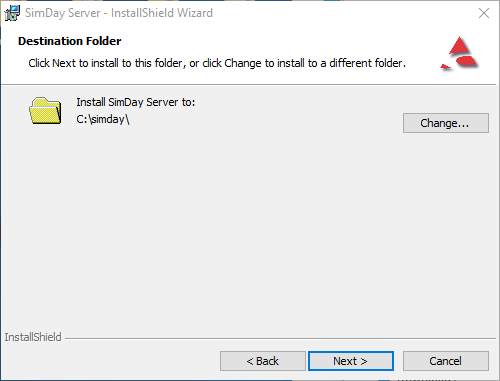
By default the path is set to C:\simday\
Note : To change the path, click on Change enter the path and click OK. Click on Next
Select Complete and then Next
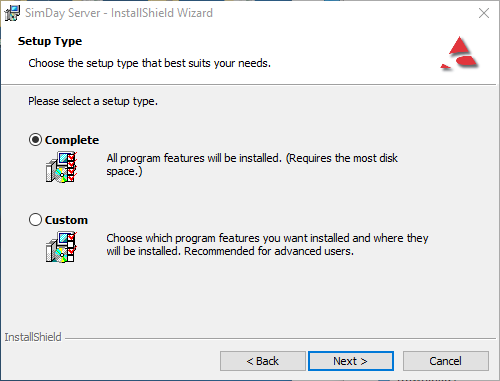
Click Install
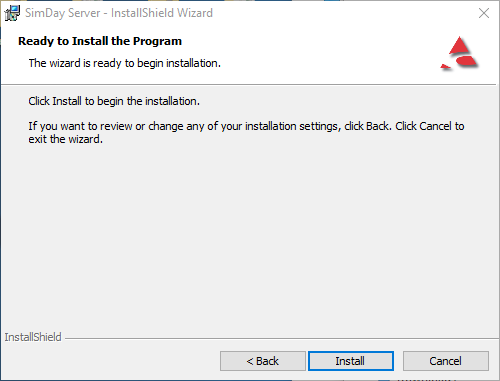
The application will now be installed
Click on Finish
Open My Computer, select C: Right click on the folder simday and select Sharing and Security.
Click on the Security tab and select Add
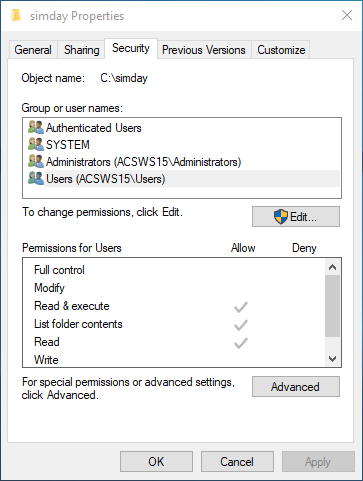
Click on the box enter the object names to select (examples) and type in the User Group (if unknown – use “Everyone”). Click the Check Names button on the right side of the screen.
The word specified group will be underlined. Click OK
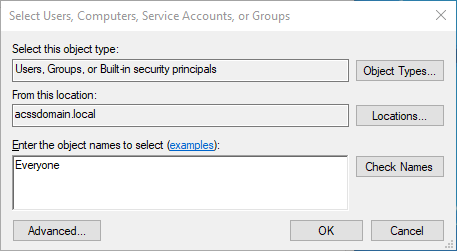
Select the User Group OR Everyone. Tick the “Full Control” (NOTE: “Modify” is the minimum permissions required) option in the Allow column. Click OK to continue.
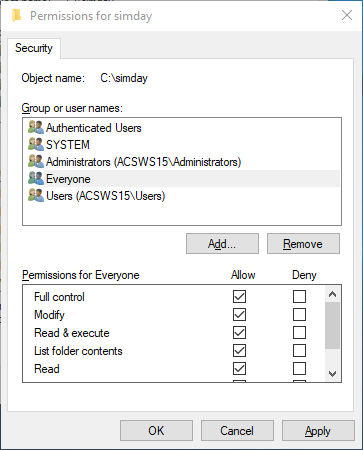
Now copy the following folders into the new installation directory, best you contact Simday support and check if the facility has some custom folders that need to be copied over.
- data
- sd_backup
- PHDB
- HCP
- utils
- custom
Open and login to SimDay.
This internet link will open automatically showing details of the software update. Close this web page.
SimDay will automatically run through this process of updating the Java application. Click OK
The application will automatically run through this process. Click OK
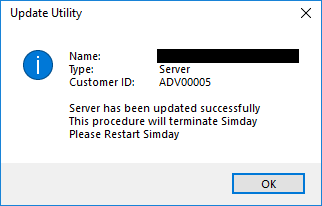
Double click on the SimDay shortcut on the desktop.
Enter the login Initials and Password.
The default settings are Initials ACS, Password ADMIN
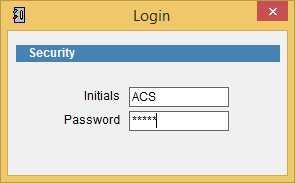
SimDay should now open and is ready to use.