

Merging Patient Records
This guide will show you how to merge 2 patients together in SimDay. It is very important to remember that when 2 patients’ records have been merged, it cannot be reversed without restoring a backup. When a backup is restored, all information that has been entered into SimDay after the backup was taken will be lost. As an indication, backups take place automatically once a day, first thing in the morning.
Click on Maintenance in the main menu and Miscellaneous in the sub menu.
Click on the General tab and then the Merge button.
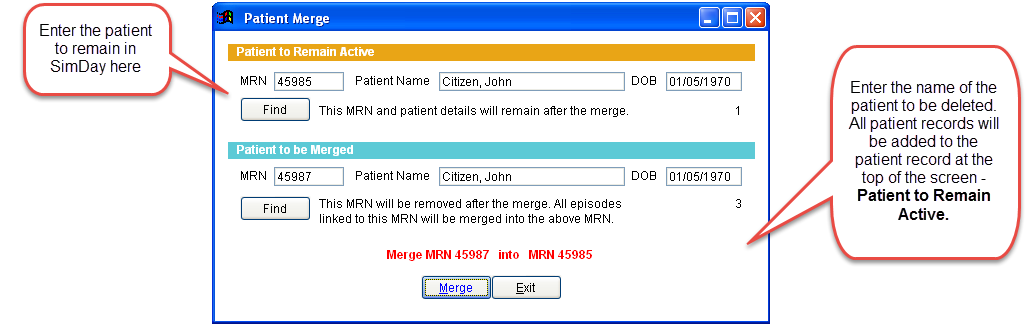
The Patient Merge screen is split into two sections.
The top half is where you select the patient you want to remain active.The bottom is for the patient records that are going to be merged into the top patient. Take care in selecting which patient you want to keep and which you want to merge.
Click on the Find button in the Patient to Remain Active section which brings up a patient search box. Search for the patient you want to keep.
Click on the Find button in the Patient to be Merged section which also brings up a patient search box. Search for the patient you want to merge.
Double check you have the right patients selected, and then click on the Merge button
You will see a little pop up screen advising you that the Merge is complete. Click on OK.
The merged patients’ record will now be deleted with all episode history transferred to the patient that remained active. All documents and scans will merge to the ‘Patient to Remain Active’ record.