

How to Stay on Top of Debtors
At this point your In-Hospital ECLIPSE submissions have been sent to the various Health Funds. What should you do to keep track of debtors on a day-to-day basis?It is advised to check for any failed transmissions after submitting claims in the Comms Centre.
To do this you must run the following report:
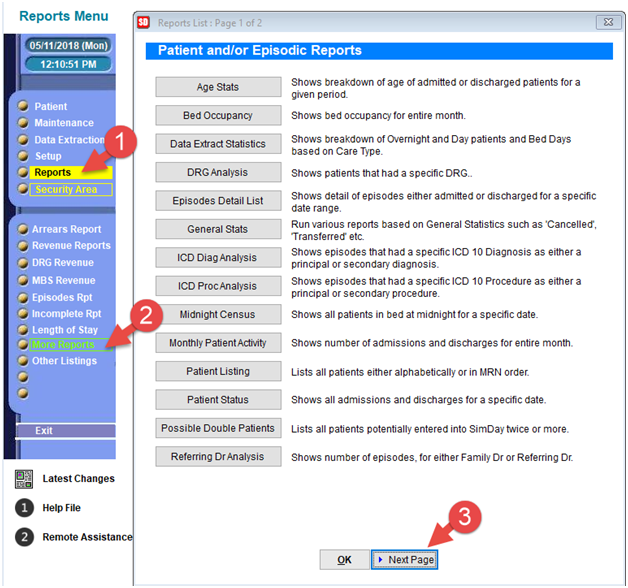
From the Main Menu;
- Select Reports
- Select More Reports
- Then Select Next Page
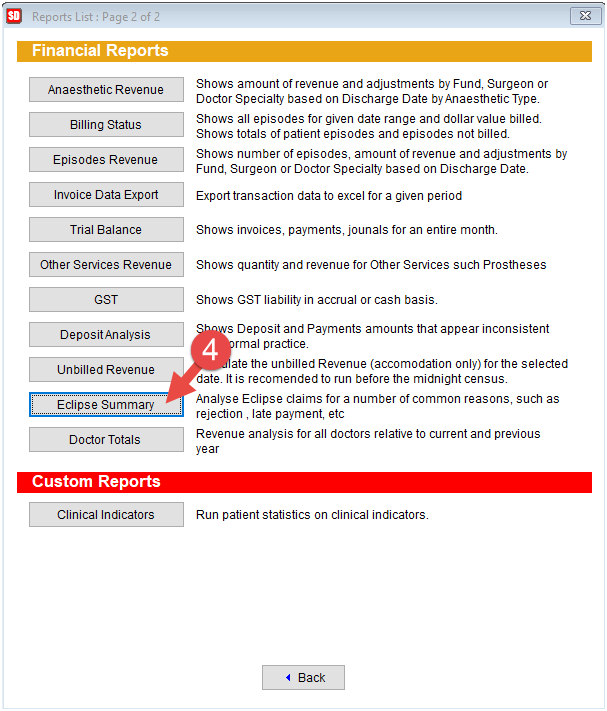
- Now select “Eclipse Summary”
The purpose of this report is to highlight any failed ECLIPSE transmissions. As long as you don’t see any “CLS” batches then it means all transmissions were transmitted successfully.
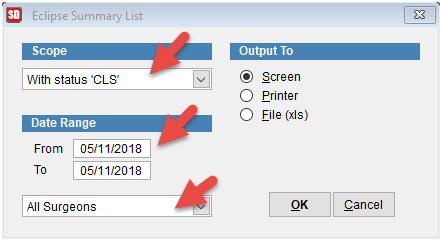
Select with status ‘CLS’ under the scope.
Please ensure you insert the corresponding date range. Given that this report should be run after every submission, ensure that today’s date is insertedwithin“From” and “To”.If you enter an older date, you will keep bringing up batches that you may have already actioned. You only want to check for batches that you have just tried to send. CLS batches remain in the database for 3 months before being cleaned up.
You would only want to enter an older date if you had forgotten to check after yesterday’s submission etc.
Then select “All Surgeons”
Click OK to generate the report.
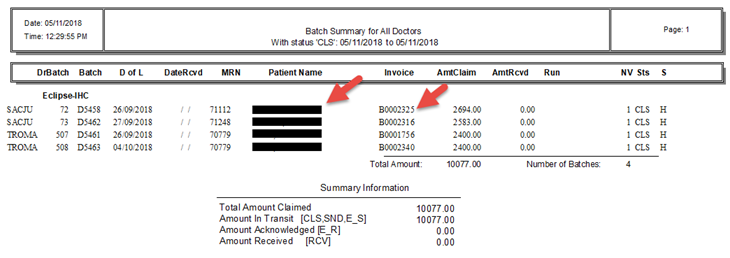
This report can now assist you to determine which patients/invoice numbers failed to send through to the Heath Funds.
There are two main reasons why a batch would fail.
- If the Health Fund isn’t accepting your claims be sure to contact their Provider Support line and discuss activating your Facility. You will be asked to provide the Hospital’s provider number as a minimum.Be clear to the fund that you are wanting to submit Hospital Claims and not Medical Claims.
- The patient’s details aren’t correct so it is recommended to check against the patient’s record screen as well as the appointment screen and ensure the patient’s full name, date of birth and membership details are correct.
Once you’ve rectified the issues above you are then able to re extract the invoices. Before you Re-Extract you must “RESET” the invoices.
- Select Patient>Booking Screen
- Select Find Booking(bottom of screen)

- Search for the Patient, enter Last Name and First Name separated by a comma
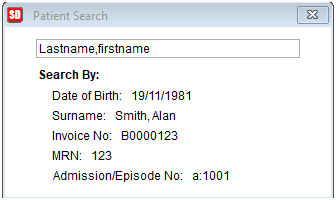
- Select “Enter” on the keyboard
- Select the correct patient from the search results
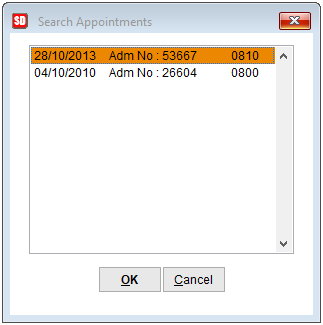
- Select the corresponding Appointment
- Click OK
Once the appointment has been located, from the bottom menu select “Pat History”

- Select the corresponding Episode top of screen
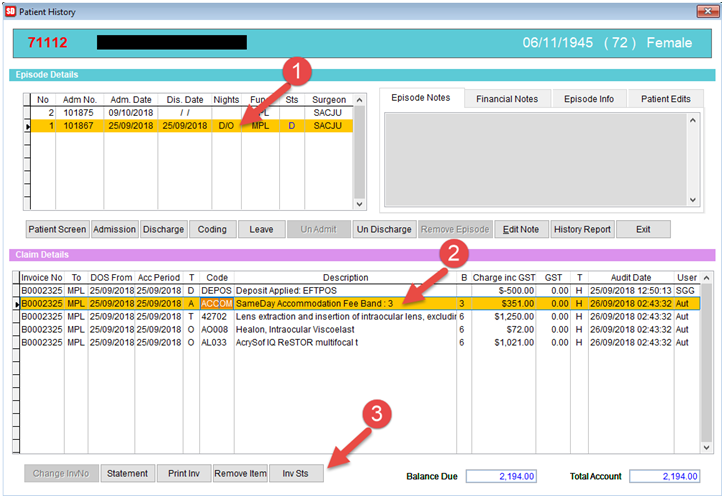
- Towards bottom of screen select the corresponding invoice number found in the “Batch Summary Report”
- Then select “Inv Sts” bottom of screen
You are now able to RESET the invoice in order to Extract the IHC Invoice, again.
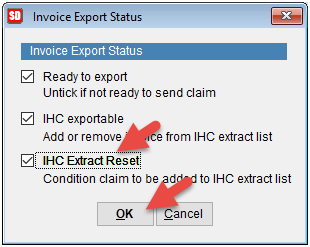
- Make sure you “check” IHC Extract Reset
- Select OK
You can refer to the page below on how to Extract ECLIPSE Invoices.
https://simdaywinhelp.acsshealth.com/how-to-perform-an-ihc-extraction/
Checking the IHC Processing Report
The purpose of this report is to determine the status of the ECLIPSE claims. By now the claims have been submitted and you can expect to see some payments, potential rejections and anything else requiring your attention.
To do this;
- Click on Patient from the Main Menu
- Select Comms Centre
- Select Received Files
- Tick “Receive IHC” and untick “Receive OEC”
- Select OK
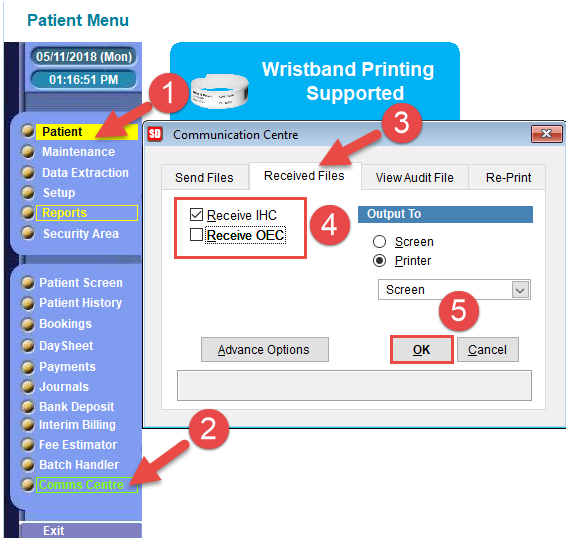
You will now receive a Processing Report as well as an Electronic Remittance Report.
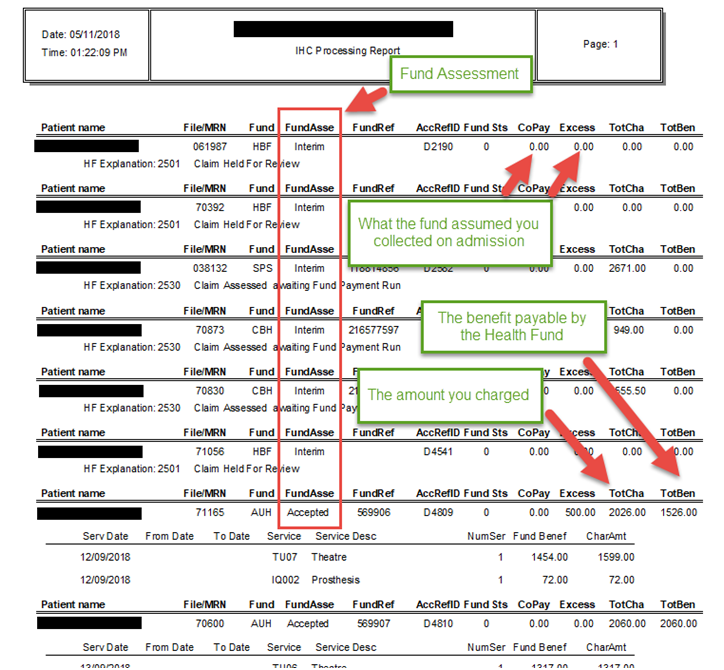
Within the Fund Assessment Column
Accepted – means your claim has been accepted by the fund and they will pay you the amount in the Benefit Amount Column when they process the payment (which could be anywhere up to 30 days)
Rejected – Means your claim is rejected. There should be a reason why the claim was rejected. If in doubt, contact the fund to seek clarification. Correct the reason for the rejection and send claim back through.
If you fail to action “Rejected” claims, your last line of defence is the “Arrears Report”. No claims should reach the 45-day mark as payment terms for a submitted claim is 30 days for all funds. Some funds will not pay a benefit if they have not received a claim within a certain time frame from the Date of Service.
Interim – means the fund is acknowledging they have received your claim, but will take longer to either Accept or Reject your claim (you will still receive a further response later on whether the claim is accepted or rejected)
The following report is the Electronic Remittance Report or (ERA).
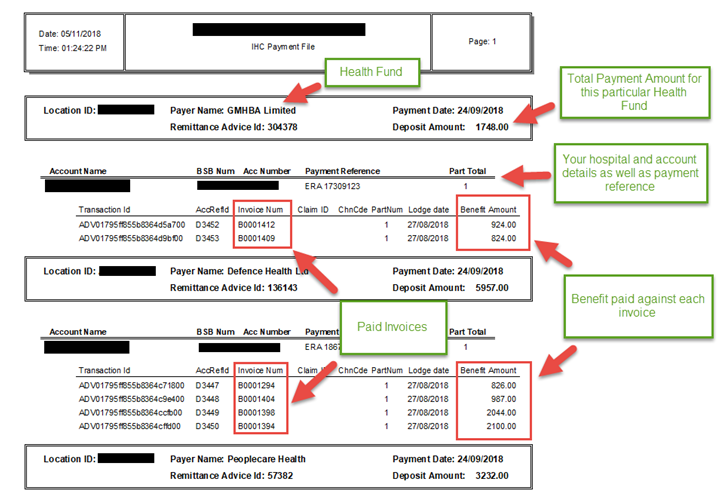
If you wish to make payments please visit this page.
https://simdaywinhelp.acsshealth.com/making-payments/