

How to set the default printer
The printer settings for SimDay are set for each machine. This means that labels can be printed by User 1 on a different printer to User 2.
Go to the main menu and click Maintenance an then System Param from the left side of the screen.
The SimDay System Parameters screen will appear. For more information on the different settings please refer to SimDay System Parameters !!MORE INFO!!.
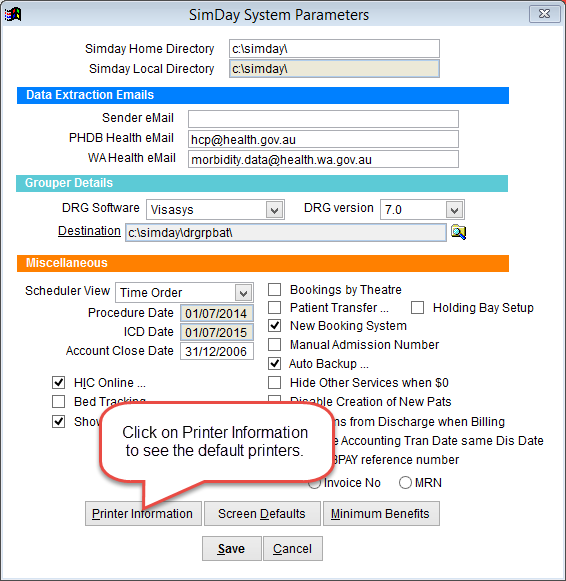
Click on Printer Information at the bottom of the screen to see the local printer configuration.
Port is used to select the printer. By default it is set to Screen. To change the setting click on the drop down arrow and select the printer from the list. If the printer is not displayed please confirm that the printer is installed on the local computer.
Type sets the paper or label to be printed. Labels are available in several sizes. Laser 14 indicates that there are 14 labels on each page.
Copies by default is set to one. Click the up or down arrows to increase or decrease this number so that one or several pages are printed by default every time this type of document is printed.
Confirm Number of Copies if selected requests the user confirm the number of copies to print each time this type of document is pronted.
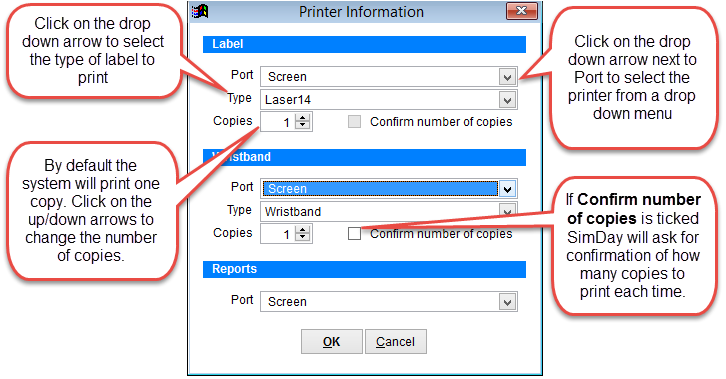
When finished click OK to save changes or Cancel to discard changes and return to the previous screen.