

Making Payments
This guide will show you how to make payments for an invoice generated in SimDay
Click on Patient in the main menu, and then Payments in the sub menu.
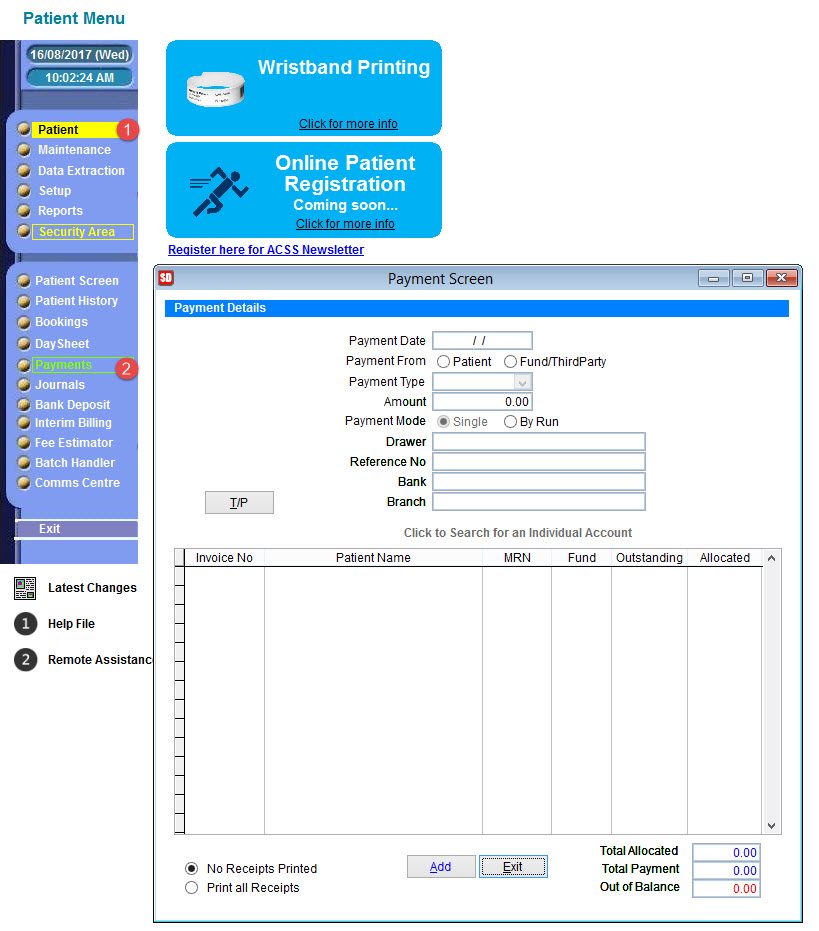
Click on the Add button which will put the current date in the Payment Date You can backdate this date by typing over the date.
Payment From Click on the radio button either next to Patient or Fund/ThirdParty depending on who is making the payment
Amount Enter the amount to be paid.
Drawer, Reference No, Bank & Branch These fields are for cheque/account details
Click on the Click to Search for an Individual Account line to bring up a patient search box and search for the patient using the various options
Once you have found your patient, it will appear in the table below showing the invoice number, patient name, MRN, Fund & Outstanding amount.
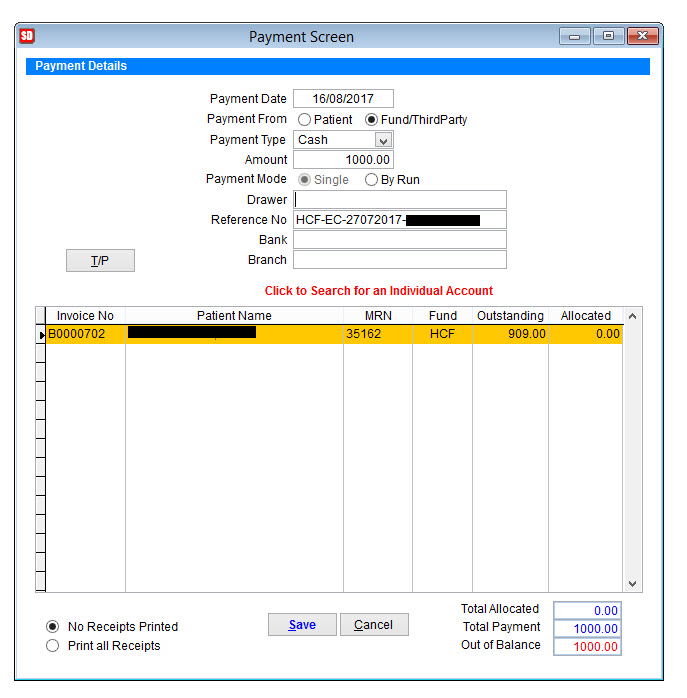
If you have more invoices to add to the one payment, click on the Click to Search for an Individual Account line again, and follow the same process of searching for the patient.
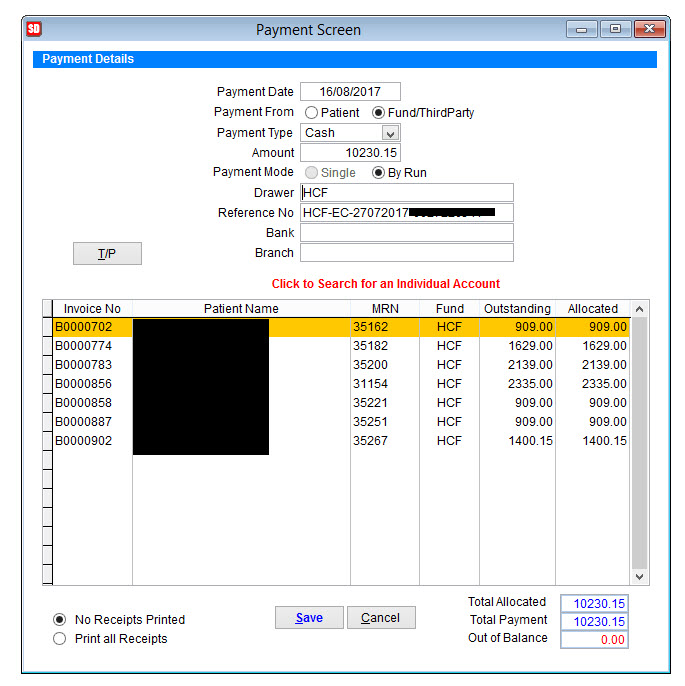
Once you have added all invoices, click in the Allocated box next to the outstanding amounts and it will allocate the full amount outstanding. If the amount you wish to allocate is lower, then just type over the amount.
NOTE: If all the invoices you would like to add have been paid under the same pay run/reference number, you can simply select the radio button “By Run” – this will automatically add all the invoices under the same pay run/reference number.
You will need to allocate the full amount you have entered in the top Amount field before you can save the payments. You can only Save when the Out of Balance box in the bottom right corner shows 0.00.
In the bottom left corner, click on the Print all Receipts radio button if you wish to print out the invoices you are paying off.
Click on the Save button to save the payments.
You will get a message asking if you want a printout of a list of patients with outstanding balances. Click Yes or No.
You can get this report anytime through the arrears report.
If you have made a mistake with the payments, you will need to go to the Patient History of every patient within that payment and remove the payment line by highlighting and clicking on the Remove Item button. Then you can go back and do the payment again.