Anaesthetic Revenue Report
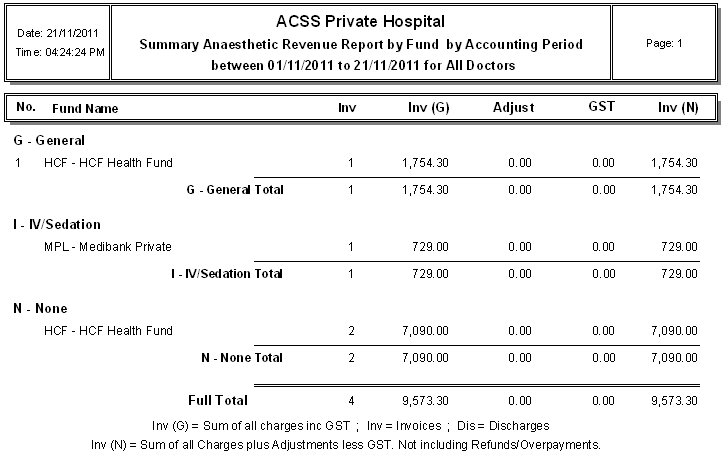
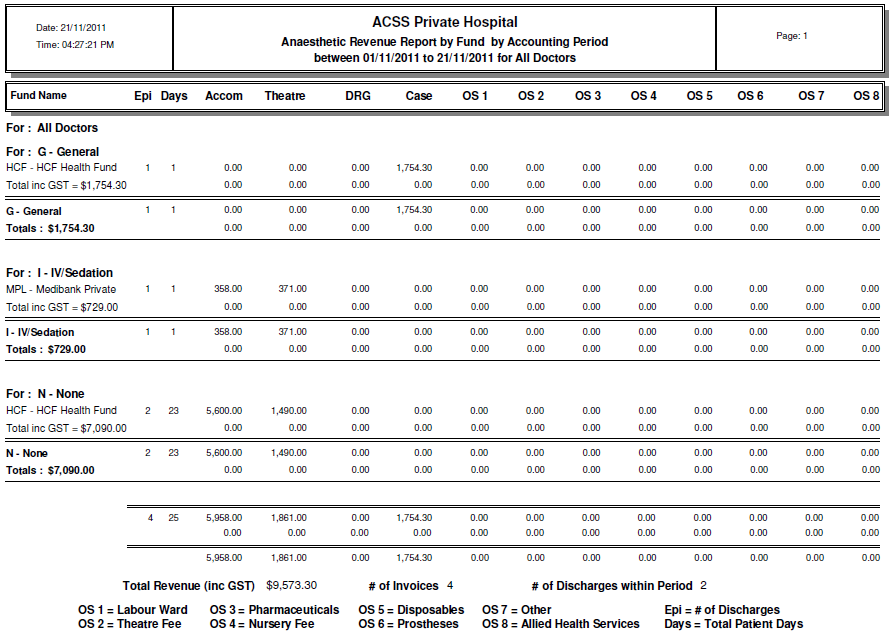
The Anaesthetic Revenue report shows all revenue & adjustments made for a specific date range based on discharge date or accounting period. It can be sorted by health fund, surgeon or doctors speciality.
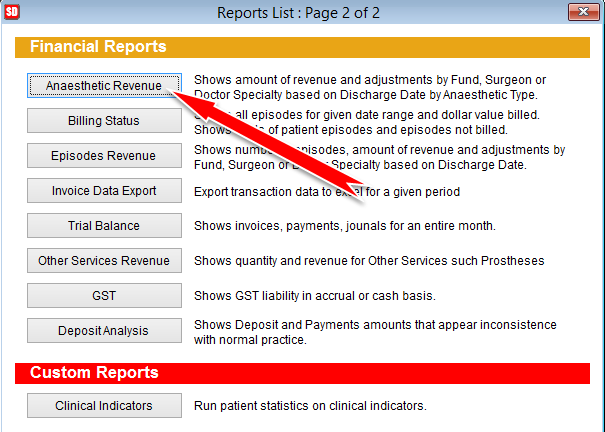
Click Reports and then More Reports from the main menu to open the Reports List.
Click Next Page at the bottom of the page to go to the Financial Reports section.
Click on the Anaesthetic Revenue button.
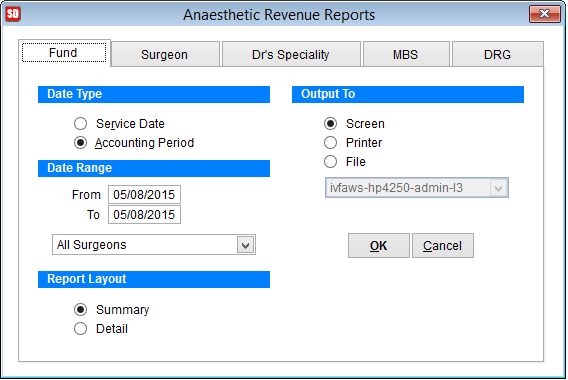
Using the tabs along the top select whether you want to sort the report based on Fund, Surgeon, Doctors speciality, MBS or DRG codes.
Date Type Select to view the revenue based on Service Date (discharge date) or Accounting Period.
Date Range Specify the date range to view the revenue for. Use the drop down box below the dates to select a particular doctor or leave it on All Surgeons.
Report Layout Select summary or detailed report which shows a breakdown of per diem, case base, DRG & other services charges.
Output To Select print or output to excel file. The excel file will be located in the tmp folder in the SimDay folder on your computer. The path would typically be C:\SimDay\tmp.