

General Stats Report
You can produce a variety of statistical reports through the General Stats Report section.
Click Reports and More Reports from the main menu to open the reports list screen.
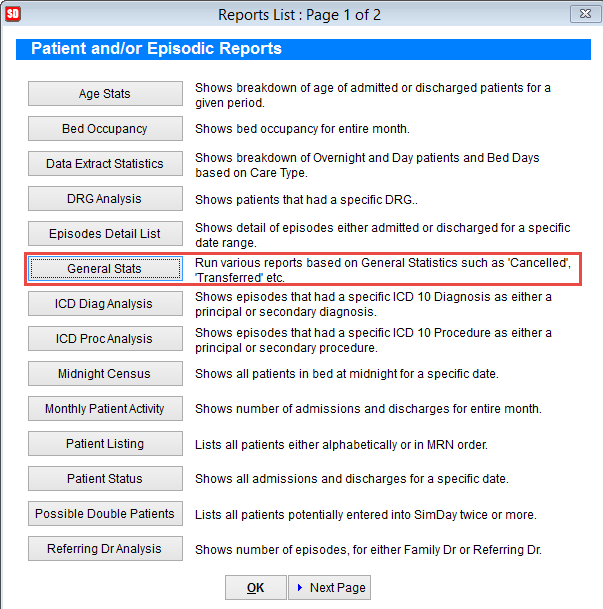
Click on the General Stats button.
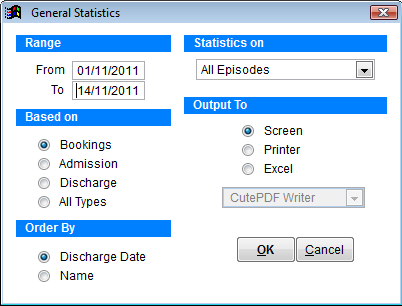
Range Enter the date range to extract data
Based On Select to base the report on Bookings, Admissions, Discharges or All Types
Order By can be set by discharge date or patient name.
Statistics On by default is set to All Episodes. Click on the drop down list and select a specific critera if required.
Output to Select screen, printer or excel file.
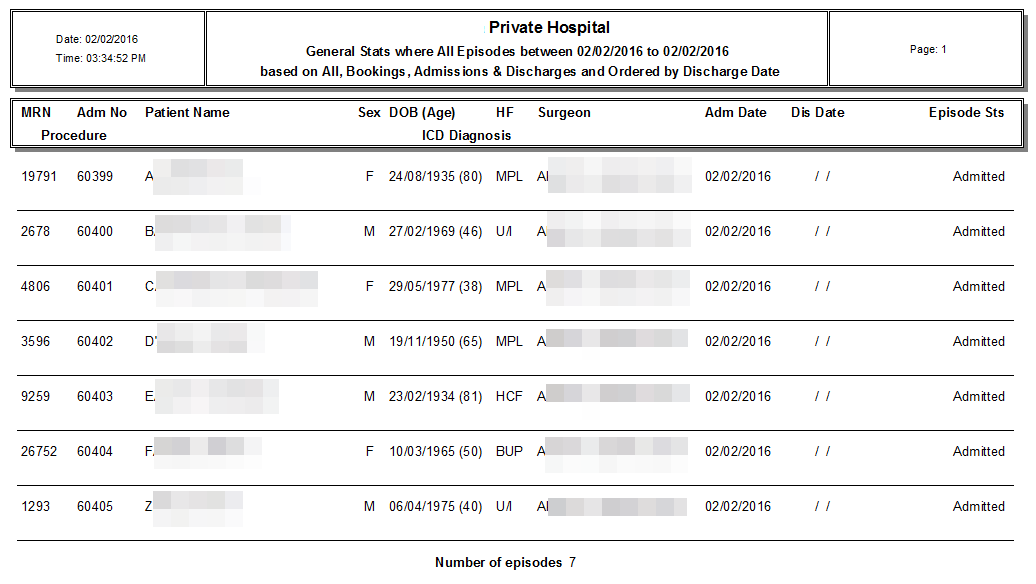
The excel file contains more data than the printed report.
Printed report
Excel file
The fields exported to excel are listed below in order that they are displayed in the report.
| chopitalcode | The code assigned to the hospital in SimDay |
| cpatientid | The patient ID number |
| nepisodeno | |
| dadmissiondate | |
| cadmissiontime | |
| ddischargedate | |
| ddischargetime | |
| cmodeofsep | Mode of separation |
| sfstate | |
| dcreatedate | |
| ccreateuser | |
| ncompensable | |
| cservicecode | |
| nweight | |
| nleavedays | |
| nleaveperiods | |
| nintcareunithrs | |
| nintcareunitdays | |
| nhoursofventilation | |
| cfundcode | |
| yexcess | |
| cmembershipno | |
| cinststatus | |
| nstudent | |
| cinstitution | |
| dfirstsymptoms | |
| csurgeon | |
| dfirstconsult | |
| cadmststus | |
| cdisintention | |
| ccontract | |
| clegalstatus | |
| csourcerefl |
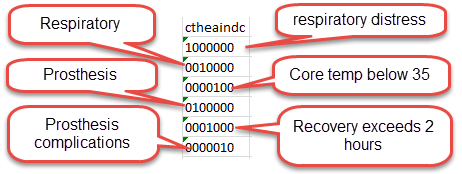
Theatre indicators
Click OK to continue or Cancel to discard changes and return to the previous screen..
Statistics On
The following fields can be selected to generate the report.
Cancelled Shows all patients with an episode flagged as Cancelled in the Edit Appointment Screen accessed through the Booking Screen.
Cancelled After Arrival Displays all patients with an episode flagged as Cancelled after arrival in the Edit Appointment Screen accessed through the Booking Screen.
No Procedure Performed Shows all patients that have not gone into theatre, based on the ‘Visit to Theatre’ field in the discharge screen and/or the ‘Visit to Theatre’ field in the Procedure Coding Screen.
Unplanned Visit to Theatre Displays all patients that had a visit to theatre that was not planned, based on the ‘Visit to Theatre’ fields on the discharge & procedure coding screen.
Transferred From Will show all patients that have been transferred from another facility, based on the ‘Transferred From’ field on the admission screen. Will also show the hospital the patients are transferred from.
Transferred To Displays all patients that have been transferred to another facility, based on the ‘Transferred To’ field on the discharge screen. Will also show the hospital the patients are transferred to.
Re-Admitted in the last 28 days (HCP) Shows all patients that have been readmitted in the last 28 days, based on the ‘Re-Admission’ field of the HCP section in the admission screen
Patient Died (HCP) Will show all patients that have been flagged as Died in the Mode of separation field of HCP section in the discharge screen.
Outpatient Category Displays all patients flagged as an outpatient within the ‘Edit Appointment’ screen accessed through the booking screen.
Day Only Category Shows all patients flagged as a Day Only patient within the ‘Edit Appointment’ screen accessed through the booking screen.
Inpatient Category Will show all patients flagged as an inpatient within the ‘Edit Appointment’ screen accessed through the booking screen.
Boarder Category Displays all patients flagged as a Boarder within the ‘Edit Appointment’ screen accessed through the booking screen.
Deleted Bookings Shows a list of all patients that have had a booking deleted. This report can only be exported to an excel file, which is located in the tmp folder within the SimDay folder on your computer. The typical path would be C:\SimDay\tmp\.
Contract Status inconsistent with IHCP Will show patients that have conflicting information between fields in the admission screen, when contract work is involved. Differs between states.