

Invoice Data Export
Invoice Data Export will create an excel file for a given date range based on the accounting period date when the other financial reports don’t provide what you need.
From the main menu click
Reports then More Reports to open the Reports List.
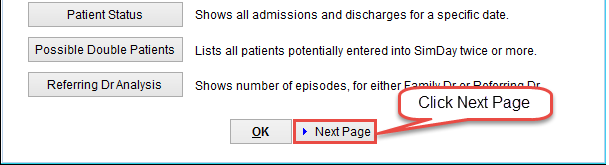
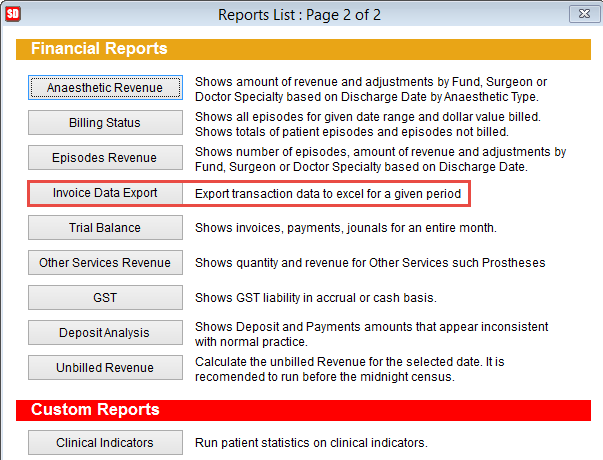
Click Next Page at the bottom of the page to go to the Financial Reports section. Click on the Invoice Data Export button to open the Invoice Data Export screen.
Enter the required information and click OK to export the details to excel or Cancel to discard changes and return to the previous screen.
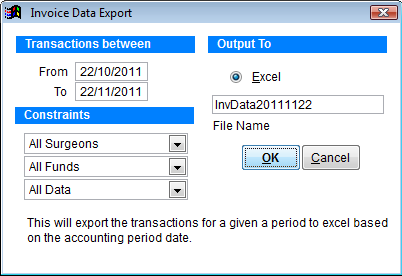
Transactions between Enter the date range for the report. From should be the earliest date and To the oldest date of the report.
To create a report for the 2015 calendar year set From 01/01/2015 To 31/12/2015.
Constraints Use the drop down boxes provided to filter the report by a particular surgeon, fund or data type such as accommodation, theatre, case base, DRG, Other Services, payments and desposits, payments, deposits or journals.
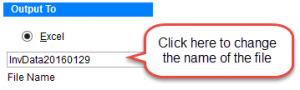
The filename is displayed on the right side of the screen. Click and change the filename if required.
Click OK to create an excel file in the tmp folder within the Simday folder on the computer. Typically the path would be C:\SimDay\tmp.
The excel file will show data as it is in the SimDay database. It will be in a raw format. If you need an explanation on what each field means, please contact SimDay support.