

How to send SMS to a group of patients from the bookings screen
SMS messages can be sent to patients individually or to groups of patients quickly and easily from SimDay with a message tailored to each patients appointment details. Credits need to be pre-purchased from ACSS in order to send messages.
Open the bookings screen, go to the main menu and click Patient then Bookings from the menu on the left side of the screen.
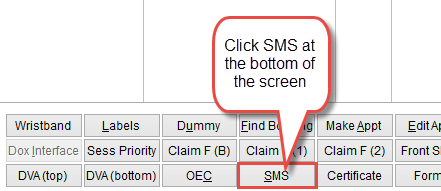
The SMS screen will open on the Compose tab.
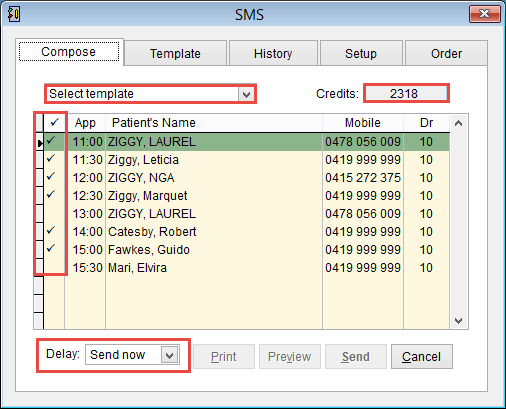
When you open the SMS screen all patients scheduled for that day will be displayed on the screen with the earliest appointment at the top of the screen. If the patient has a mobile number a tick will be placed in the first column to send a message to the patient.
Double click on the first column to add or remove the tick  . If the patient doesn’t have a mobile number listed they cannot be selected.
Click Select Template to chose the message to be sent to the patient.
Click Preview to see the SMS that will be sent to the selected patients.
Click Send to send the message to the selected patients or Cancel to discard changes and return to the previous screen.
Click here for How to Create an SMS template.
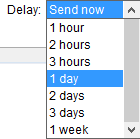
Delay sets when the message will be sent. By default the system will select Send now,click on the drop down arrow and select when the message will be sent to the patient if required.
After selecting the template click Preview at the bottom of the screen to see the exact message that will be sent to the patient.
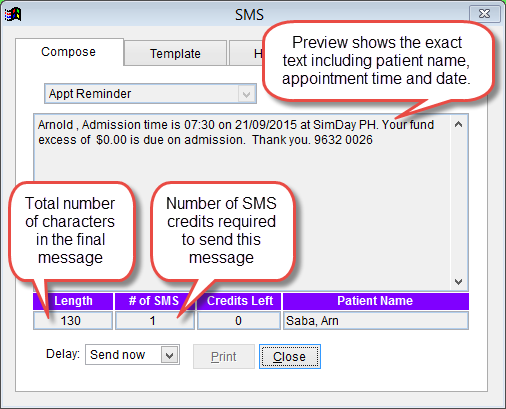
The exact message will be displayed including all personalised fields such as patient name, appointment date and time etc.
Length is the number of characters in the message. SMS messages are limited to 160 characters including spaces. If the number displayed under Length turns red it means you have reached the maximum SMS size that can be sent. Any text that exceeds the maximum number will not be sent to the patient.
# of SMS the total number of SMS messages that will be sent to this patient. If there are more than 160 characters SimDay will send an additional SMS to the patient if this feature is enabled.
Credits Left is the total number of available messages available.
Patients Name is the family name, first name of the patient.
If messages are personalised the total number of characters will vary for each message. SMS messages are limited to 160 characters per message. If the SMS exceeds 160 characters then the text will be separated into two SMS messages sent to the patient and deducted from the available credit. To allow patients to respond to SMS messages or modify the number of messages sent to the patient refer to SMS Setup
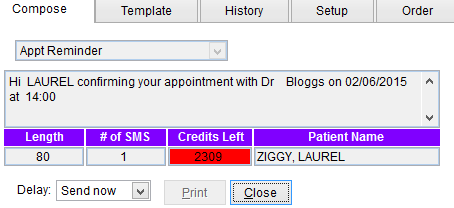
Click Close to return to the previous screen.
Messages can be personalised using the patient name, doctor name, date & time of appointment as well as procedures, excesses, fasting times etc. SMS is a great way to send a reminder of a patient appointment or notify patients quickly if the doctor is unavailable or delayed.
Click Send to send the SMS to the selected patients or Cancel to close the screen and discard and changes.
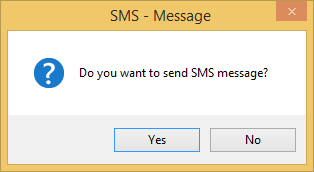
Click Yes to confirm sending the SMS messages.
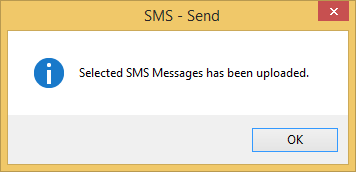
A confirmation screen will be displayed to confirm the message has been uploaded to the SMS server. Click OK to close this screen.
Did you know that patients can also send replies to SMS messages. To activate replies click here. SMS Setup.