

How to Add a Health Fund
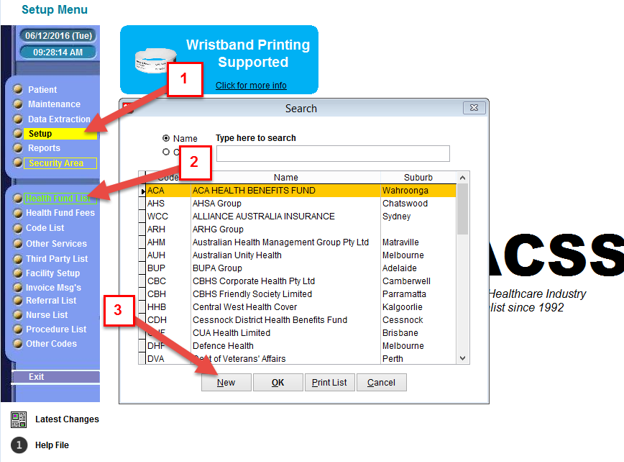
1. Click on Setup in the main menu
2. Click on Health Fund List in the sub menu
3. Click on the New button to begin creating a new fund
4. Enter details for the new fund (see example below for new fund Emergency Services Health)
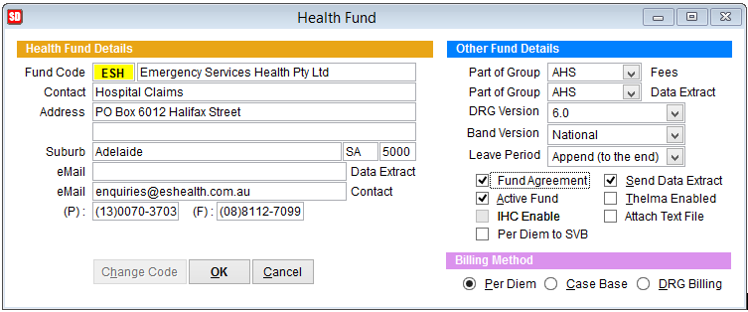
Fund Code – Needs to match the health funds eclipse code (which may be different to their HCP code)
Contact & Address – This is what prints out on invoices produced for that fund
Email (Data Extract) – If the health fund receives their HCP data via email, enter that email address here. If the fund gets their HCP data via a Web Portal, just enter UPLOAD in this space.
Email (Contact) – You can enter a contact email address here, but SimDay doesn’t actually use this for anything. It’s only intended to be used like an index.
Phone and Fax – Enter the numbers, but like the email contact, it’s only used as an index.
Part of Group (Fees) – If the health fund is a stand-alone fund, leave blank, otherwise select the head of the health fund group. Like the example shown previously, Emergency Services Health is a part of the AHSA group so it’s linked accordingly. The benefit of doing this, is that you don’t need to added the fees for the new fund as it’s inherits the fees from the groups fee set up.
***IMPORTANT***
Once you’ve linked up a new fund with a group for fees, you’ll need to refresh the fees by going to Setup > Health Fund Fees > Select the Fund Group (e.g. AHS) and then click Edit and then Save. If applicable, you’ll also need to go into the DRG & CaseBase fees and Edit & Save, as well as the Overnight Fees section.
Part of Group (Data Extract) – If the health fund is a stand-alone fund, leave blank, otherwise select the head of the health fund group. If you’ve selected to be part of a group, when you extract the HCP data for that health fund, it will be combined in the same extract file as the rest of the group.
DRG Version – Select the DRG version the fund has indicated for you to use which may be advised on your health fund contract. If in doubt, you can set the DRG to be 6.0 and the fund will advise you if they want you to change it to something else.
Band Version – Select National unless the fund has advised you to use State banding (which is only applicable for WA hospitals)
Leave Period – This is only applicable to Overnight Facilities. This affects billing for a patient that has gone on leave during their hospital stay. ‘Append to the end’ means regardless of when the patient had leave, the daily fee is deducted from the lowest step down rate. ‘Insert in between’ means the daily fee will be deducted from the step down where the leave occurred. ‘Disregard’ does not impact on the fees and the patient will be charged for the day they were on leave.
Fund Agreement – Select this if you have a contract or are on second tier benefits with the fund.
Active Fund – You can deactivate a fund by unticking this box.
IHC Enable – Tick this box to enable ECLIPSE claiming with the fund (If greyed out, the fund does not provide ECLIPSE services or the health fund code is incorrect. Check if the fund has ECLIPSE functionality and what types of ECLIPSE features the fund has available, visit ECLIPSE Status Page.
Per Diem to SVB – Modifies the structure of an ECLIPSE claim. Leave this unticked unless advised to do so.
Send Data Extract – Tick this box if you are required to send HCP data to the fund.
Thelma Enabled – Leave unticked. It’s an old method of online claiming.
Attach Text File – No longer used. If emailing HCP data to a fund, it will attach a text file as opposed to a compressed zip file.
Billing Method – Select the most common method of billing for the fund. The most common method would be CaseBase for funds you have a contract with, as your most common services would have an all-inclusive rate negotiated.
Visit our wiki for more information on the various billing types.