

Health fund fee set up
All Fee set up sections have a ‘Current’ and an ‘Old’ column. This is so it is possible to bill using old fees when crossing over to a new contract. When billing a patient, SimDay looks at the Start of Current Fee date (top right corner) to determine which fee to use.
Click Setup and Health Fund Fees from the main menu on the left side of the screen.
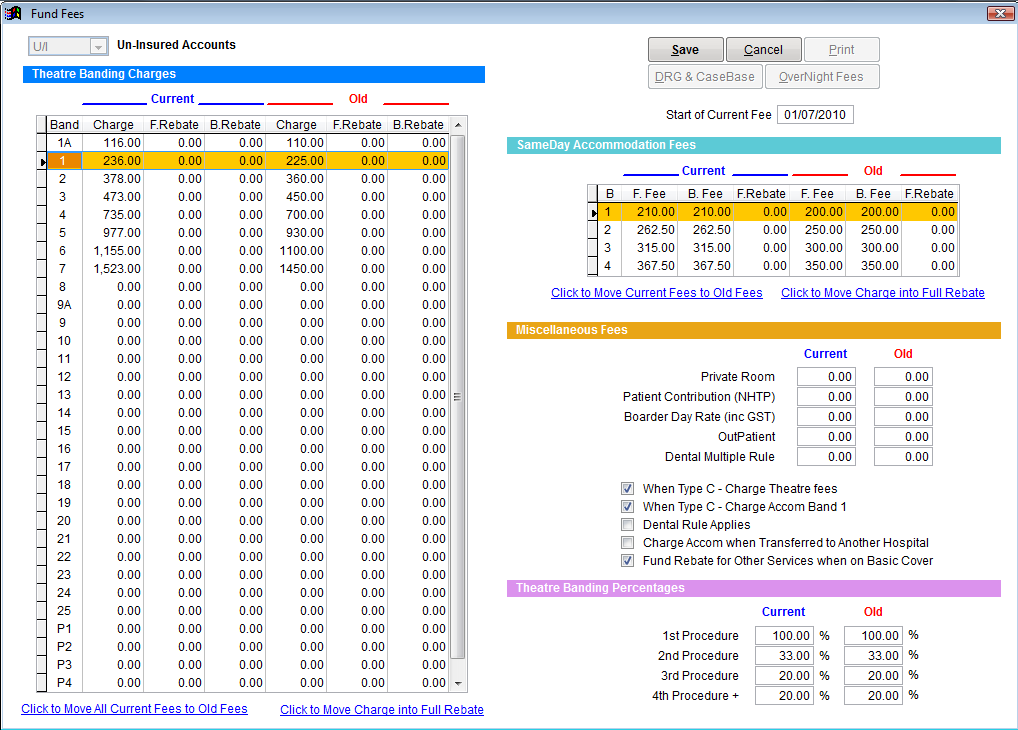
The fund fee screen will open displaying the charges and calculations for the health fund.
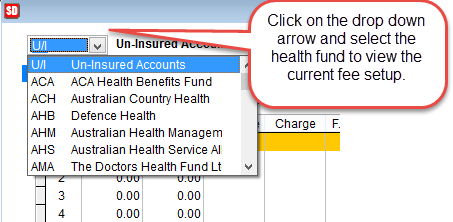
First click on the drop down box in the top left corner and select the health fund to see the current fee setup.
Click Edit in the top right corner to add or edit anything within the page.
If fees are already in place and you are entering a new contract, click on the Click to Move All Current Fees to Old Fees line (bottom of Theatre Banding Charges table & Same Day Accommodation Fees table). This makes it possible to still bill a patient under the old contract when necessary.

Start of Current Fee In the top of the screen is used to enter the starting date of the new contract with the health fund.

Theatre banding charges
The table on the left of the page is for Per Diem Theatre Banding charges.
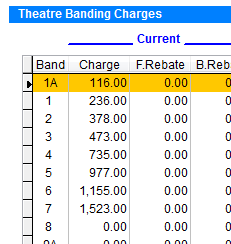
Enter the charges for each band under the charge column.
The F.Rebate (full rebate) column is only used when providing quotes (Informed Financial Consent) to patients. Click to Move Charge into Full Rebate at the bottom of the page to copy all charges into the F.Rebate column.
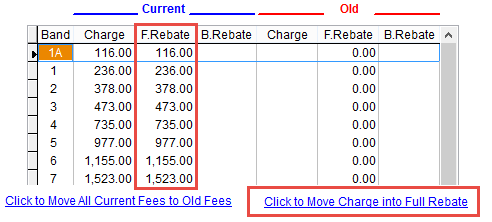
The B.Rebate (basic rebate) column is for quotation purposes if the patient is on basic hospital cover.
SameDay accommodation fees
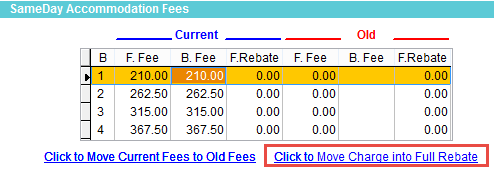
Enter the Same Day Accommodation Fees for the 4 bandings. There is an F.Fee column which is for full cover patients, and a B.Fee which is for basic cover patients.
Use Click to Move Charge into Full Rebate function at the bottom of the page to copy the charges into the F.Rebate column.
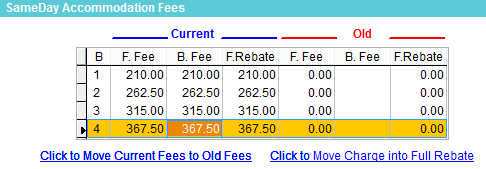
The Basic Rebates for Same Day Accommodation (otherwise known as minimum benefits) is entered by accessing the Minimum Benefits section through the Maintenance>System Param menu. They are not included on the Fee Set Up screen as they are not determined by the health fund.
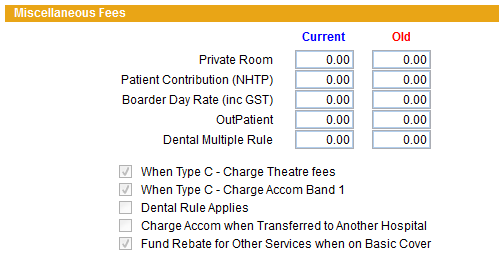
Private Room This fee is only used for quotation purposes (Informed Financial Consent). Enter the additional charge for a private room here if needed to show the patient the additional charge for a private room on top of the shared room fee.
Patient Contribution (NHTP) Enter a fee if an additional fee is charged in addition to the usual room rate for Nursing Home Type Patients.
Boarder Day Rate (inc GST) Boarders are people who stay with the patient such as a parent or family member. Enter the rate here.
OutPatient Enter a fee here if you wish to bill an Outpatient using SimDay.
Dental Multiple Rule If a health fund specifies a rate to be used for a dental multiple rule, enter this rate here.
When Type C- Charge Theatre fees Tick this box if the health fund allows you to charge theatre fees for a Type C procedure.
When Type C- Charge Accom Band 1 Tick this box if the health fund states you can only charge a Band 1 accommodation for a Type C procedure.
Dental Rule Applies If the health fund wants you to use a dental rule then tick this box. This ties in with the fee in the Dental Multiple Rule box.
Charge Accom when Transferred to Another Hospital Tick this box if the health fund allows you to charge for accommodation when transferring patients to other hospitals.
Fund Rebate for Other Services when on Basic Cover– (Used for quotation purposes) Tick this box if the health fund will cover a patient on basic hospital cover for any other services charged (e.g. prostheses)
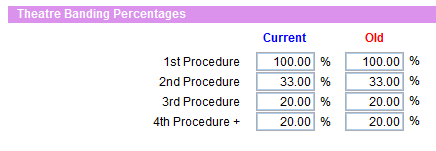
Enter the multiple procedure percentages in the fields provided. When billing SimDay will calculate the fees using the percentages entered here.
Click on the Save button in the top right corner to save all fees on this page.
CaseBase & DRG Fee Setup
Click on the DRG & CaseBase button in the top right corner to open the following screen.
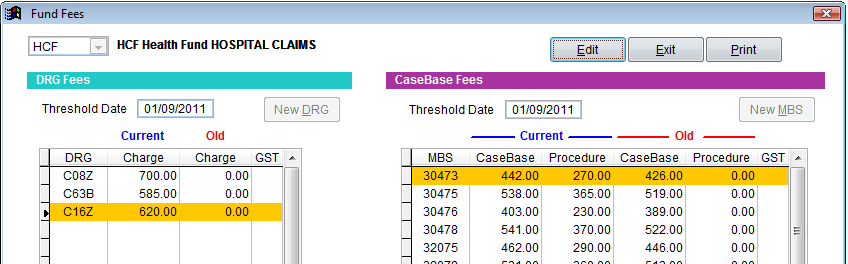
The DRG Fees are on the left side and the CaseBase Fees are on the right side of the page.
Click Edit.
Either click on the New DRG or New MBS button depending on which fees you want to add.
Click in the first available row under the DRG or MBS column and type out the item code and then the fee relating to that item code.
In the CaseBase section, there is a CaseBase column and a Procedure column. The CaseBase column is for the full fee to be charged (bundled charge). The Procedure column is for a Procedure Only charge, so if 2 CaseBase items are billed, SimDay will use the CaseBase fee for the first item (highest charge) and the Procedure fee for any subsequent items.
If you need to add a fee for a CaseBase item that is not a valid MBS item, then you will need to create that item in the Setup>MBS Codes screen
Click on the Save button after entering all fees.