

Treating Doctor Set Up
Click on Maintenance in the main menu, then Doctor Data in the sub menu to bring up a list of the current doctor database.
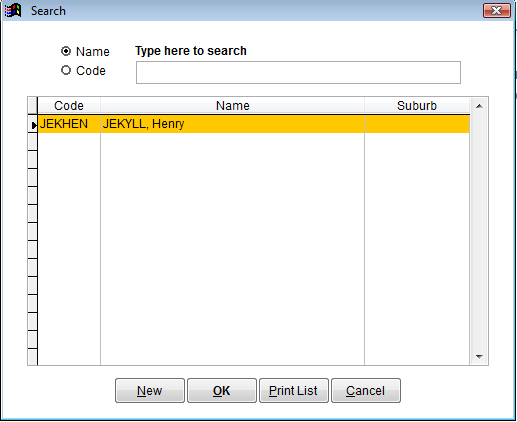
Search for a doctor by entering the name in the search box or clicking the code radio button and searching on a doctor code. You can also scroll through the list using the vertical scroll bar on the right.
To view an existing doctor’s details double click on the name.
Click New button at the bottom of the screen.
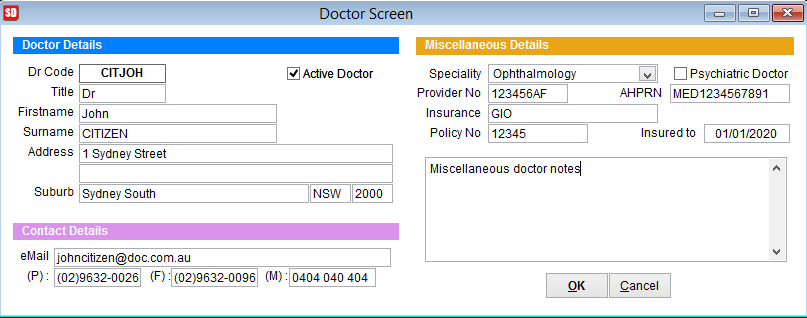
Assign the doctor a code of up to 6 characters. This is a code that only the SimDay users will see. It is recommended that the code be something easy to recognise the doctor by, such as a code that starts with the first 3 letters of the doctor’s surname followed by the first 3 letter of the doctor’s first name. This code cannot be changed once created so it is very important that you take care in assigning a code.
Enter the doctor’s title, first name, surname, address and contact details. These details can be changed or added at any time.
Speciality Click the drop down box and select the doctors’ speciality. These specialities are specified by the government so if an exact match isn’t available its necessary to pick the closest match or something general.
Provider No Enter the doctors provider number
Psychiatric Doctor tick this box if the doctor is either a psychologist or psychiatrist
Insurance / Policy No / Insured to Enter the doctor’s insurance details
AHPRN (Australian Health Practitioner Registration Number) Enter the doctor’s number. Mandatory only in some states.
The box in the bottom right corner can be used to add any notes about the doctor. There is also an Active Doctor tick box near the Dr Code field. Un-ticking this box makes the doctor not appear in any drop down list throughout SimDay; however the history of the doctor is retained.