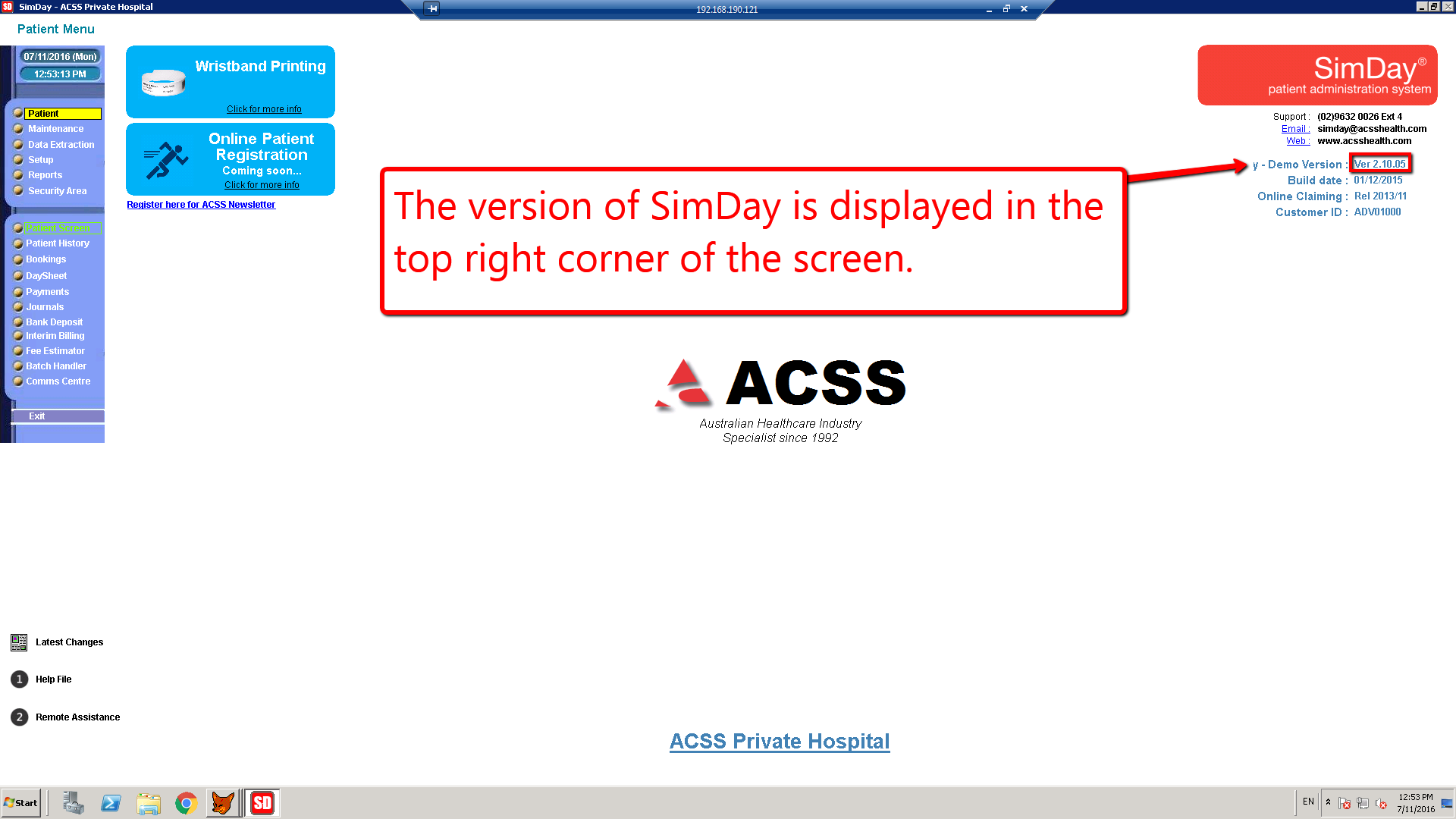
How to update SimDay
Usually SimDay will download updates automatically when they are available. It is possible to download the updates manually by the following instructions.
Depending on the local security settings it may be necessary to run SimDay as administrator.

Go to the main menu and select Maintenance and then Miscellaneous.
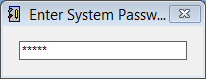
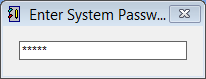
Type the system password and click Enter on the keyboard.
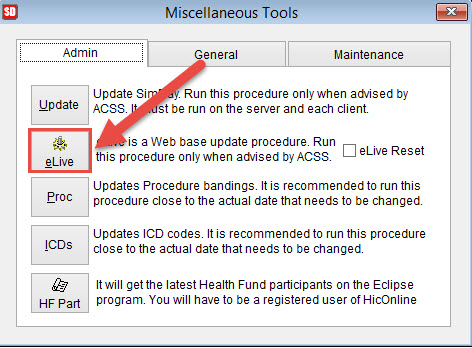
Click on the eLive icon on the left side of the screen.
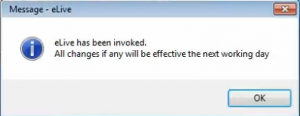
The eLive message screen will be displayed and eLive will start downloading the current version.
The eLive icon will be displayed at the bottom of the screen, click on the icon to see the download progress.
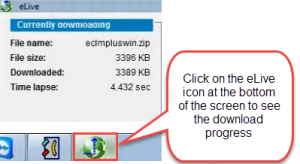
Once the update has been downloaded it will automatically be applied when SimDay is started the following day.
How to force SimDay to update once the files have been downloaded.
All users must be logged out of SimDay before updating the server. It is OK to download the files but verify no other users are connected before applying the update below.
Click Maintenance and System Setup.
Enter the password
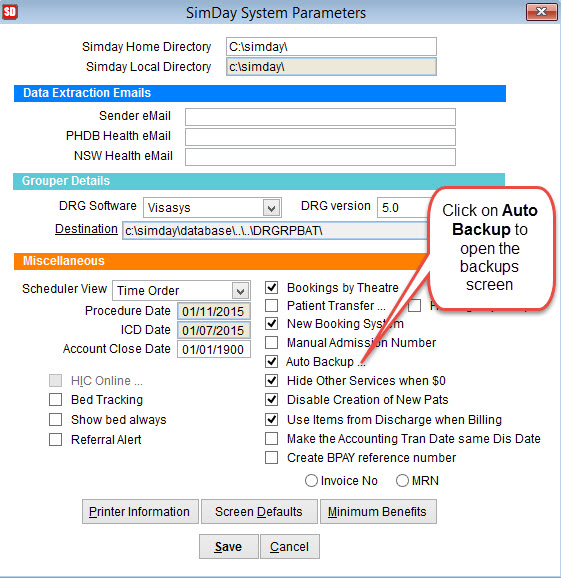
Click on Auto Backup to open the Backup Setup screen.
Remove the tick next to Enable Auto Backup and click OK to close the screen.
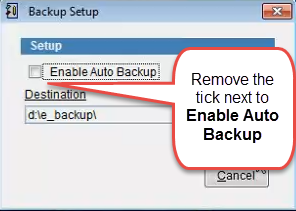
Click Auto Backup again to open the Backup Setup screen and add the tick to Enable Auto Backup.
Close and open SimDay again and the system should display an update message.
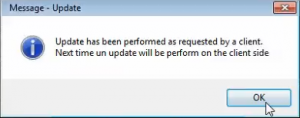
SimDay will ReIndex and close.
Login to SimDay and verify the version is updated correctly. Check the version number, build date and MBS fees dates.